Article Updated Nov 16, 2026
 10 min read
How ERP Automation Works: Workflows, Controls, and a Pilot Checklist
Updated Nov 16, 202610 min read Updated Nov 16, 202610 min read
ERP automation uses configured rules, workflows, and integrations to carry out or coordinate business-process steps that involve an enterprise resource planning system. For example, a low-stock event can prompt a check of the item and existing orders, prepare a purchase-order draft, and route it for approval. The ERP record—not a message saying “done”—is where the team verifies the resulting status.
Start with one process, one authorized outcome, and a named owner for exceptions. Before connecting a live ERP, decide what the automation may read or write, who can approve a change, and how you will measure the result.
An ERP system brings business processes and information such as finance, procurement, inventory, and sales into a connected system. Depending on the implementation, it may hold item and vendor records, stock quantities, purchase orders, approval states, receipts, and invoice records. SAP’s ERP overview describes ERP as a way to manage core processes through an integrated view of business activity.
ERP automation applies software-driven steps to those processes. Some rules and approvals may run inside the ERP; others may be coordinated by an external workflow connected to it. The exact division depends on the product and configuration.
For example, an ERP might hold an item’s warehouse balance and an open purchase order. An external workflow could check those records, assemble a draft request, and route it to the appropriate approver. The ERP may then store the resulting order and its state. The automation must have an authorized way to perform each read or write, and the team must verify what was actually saved.
The ERP, the workflow, and AI can participate in the same process without having the same responsibility. Business owners define thresholds, approval authority, and exception routes; technical owners configure and test the implementation.
|
Role |
What it may do |
Where the control belongs |
|---|---|---|
|
ERP |
Maintain configured item, vendor, stock, order, and status records |
ERP access controls, business rules, record history, and the authorized owner of the data |
|
External workflow |
Receive a trigger, apply defined checks, route a request, and invoke permitted actions |
Process owner sets rules; integration owner limits credentials and exposes only approved operations |
|
AI component |
Extract fields from unstructured input or suggest an exception category |
Validate extracted fields against authoritative records and route uncertain results for review |
|
Human approver or exception owner |
Decide on items requiring judgment or approval |
Delegated authority, an assigned queue, and a recorded decision |
|
Monitoring and audit |
Record inputs, actions, responses, decisions, and failures as configured |
Agree where the ERP history and workflow execution logs reside and who reviews them |
An AI-assisted workflow can help interpret a supplier message, for example, but a plausible SKU is not a verified SKU. A lookup against the approved item master and a configured authorization check must happen before a permitted ERP write. The process owner decides whether a human must approve a draft or an exception; AI does not acquire that authority merely because it proposed a value.
Likewise, a workflow log saying that a request was sent does not alone prove the ERP saved it. Record the ERP identifier and returned state, and read the destination record when needed. Do not assume that an external log replaces the ERP’s own history or vice versa.
The following is an illustrative workflow, not an observed CogniAgent deployment. Assume a business has defined reorder thresholds, an approved supplier for each item, and a purchasing policy with approval limits. The relevant ERP and integration must support the described reads and writes and grant the service account the necessary permissions.
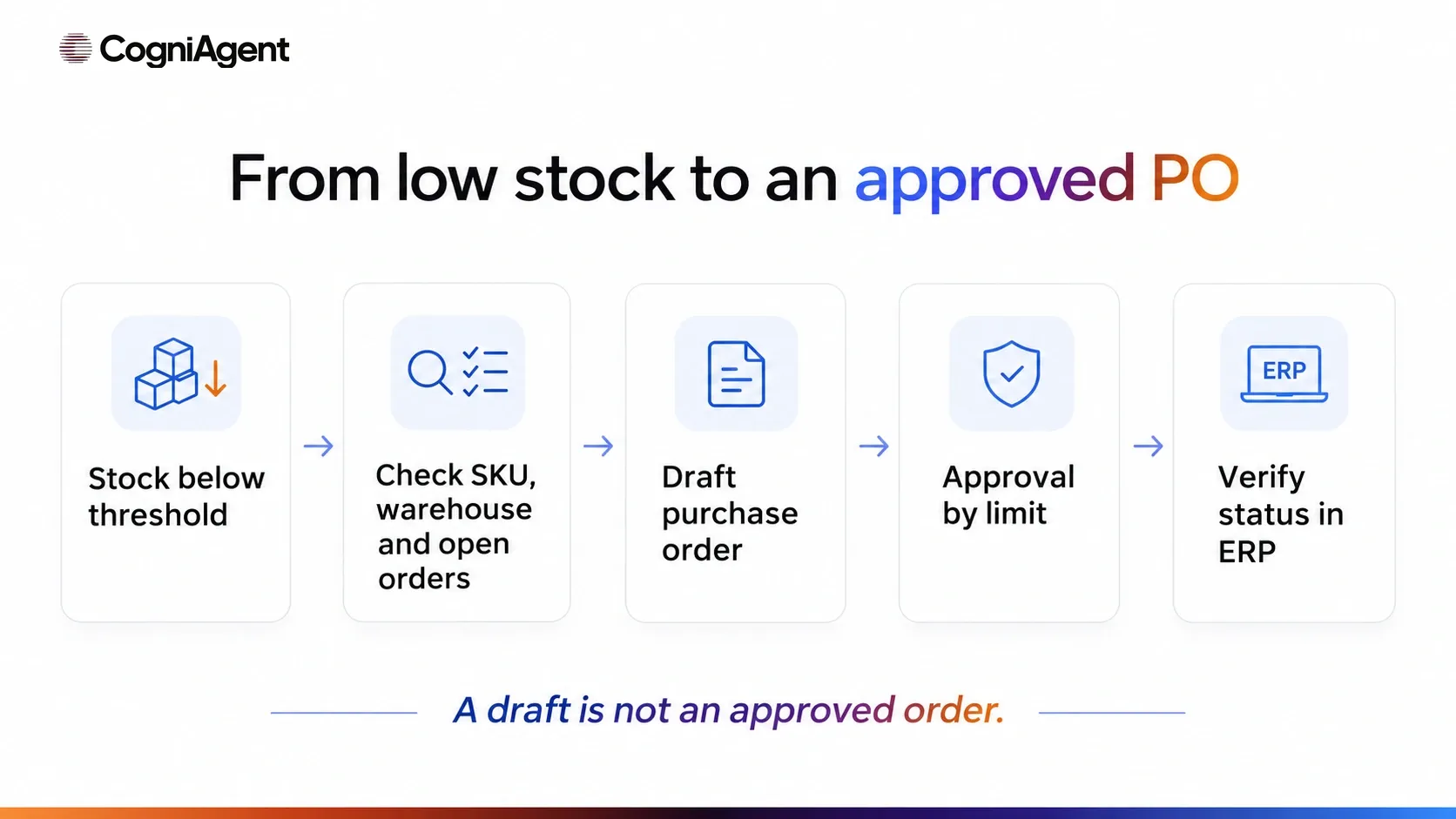
An illustrative replenishment workflow. A draft PO is not an approved order.
|
Situation |
Expected behavior |
Exception owner |
Evidence before proceeding |
|---|---|---|---|
|
Unknown SKU |
Stop the write and send the request for item-master review; do not guess a substitute |
Inventory master-data owner |
An authorized correction or confirmed SKU in the item master |
|
Relevant open order exists |
Block a duplicate draft and send the existing order and demand to purchasing for review |
Purchasing buyer |
The existing PO and quantity are checked against the organization’s replenishment policy |
|
ERP write times out |
Mark the result as unknown, not failed or successful; do not blindly retry |
Integration operations owner |
Reconcile the destination using a request reference and check for an existing record before any retry |
Use a stable request reference and, where supported, an idempotency mechanism. A lookup alone may not prevent duplicates if two events are processed concurrently; the implementation needs an appropriate concurrency control or unique constraint in the target system where available. If the destination cannot be checked, leave the request in an exception state for the owner.
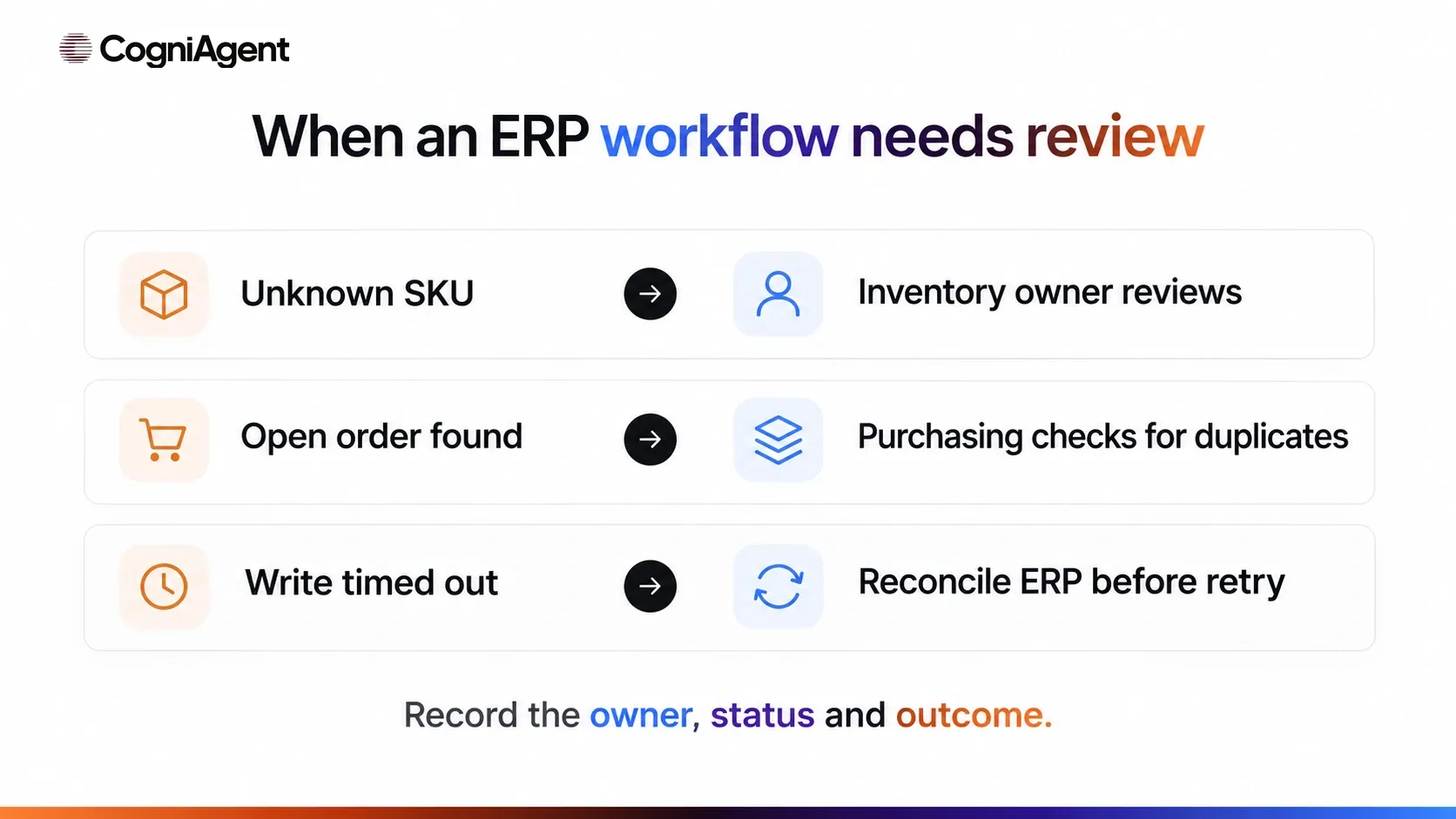
Unknown outcomes require reconciliation before a write is retried.
For a separate sales-order intake scenario, see Purchase Order Processing. The page’s workflow should not be assumed to implement the illustrative replenishment process above.
Pick a process with a clear trigger, sufficiently reliable records, an identifiable reviewer, and an outcome that can be checked in the destination system. A narrow pilot is easier to assess when its inputs, permitted operations, and exceptions are documented before launch.
|
Pilot |
Trigger |
Source data |
Permitted action |
Exception |
Result to verify |
|---|---|---|---|---|---|
|
Purchasing |
Approved purchase request needs processing |
Request, supplier master, and approval policy |
Create a draft PO and route it according to configured authority |
Supplier missing or amount requires a higher approver |
Correct draft exists; approval decision and final ERP state are recorded |
|
Inventory |
Stock for an item and warehouse falls below a defined threshold |
Item master, warehouse balance, open POs, and reorder policy |
Check for supply already on order and prepare an authorized replenishment draft |
Unknown SKU, conflicting stock, or an existing order |
No duplicate draft; matching ERP record and state can be inspected |
|
Invoice intake |
Supplier invoice arrives for review |
Invoice, supplier record, PO, and receipt data where applicable |
Extract fields and prepare an invoice record for review if authorized |
Unmatched supplier, amount, or receipt |
Correct invoice record exists in the intended state; discrepancies remain visible |
The invoice example is an intake process, not permission to pay a supplier. See Invoice Data Entry Automation for the separate invoice workflow. For an online store, inventory signals may originate alongside sales activity; compare the ERP and warehouse records before automating replenishment. The eCommerce Automation page provides broader product context.
Select comparable requests from a baseline period and a pilot period. Record the dates, time zone, request types, warehouses, approval tiers, volumes, and whether records are complete in each period. A seasonal product mix or a change in approval policy can make a simple before-and-after comparison misleading.
Use a consistent request identifier to join the workflow log with ERP records. Agree how to handle canceled, still-open, and missing records before calculating results.
Measure elapsed time per eligible PO from the recorded submission for approval to the final required approval. Report the median in hours for completed POs, the number included, and the period. Report open or canceled requests separately; do not silently drop them without saying so. If approvers need business-hours measures, define that clock consistently for both periods.
Count unique eligible requests that required at least one manual exception review, divided by all eligible requests in the same period. A request with several exception events counts once for this measure; report event counts separately if useful. Define what qualifies as an exception so routine required approval is not accidentally counted as a failure.
Count confirmed duplicate PO records for the same underlying demand over each period, using a documented matching and review rule. Also report the number per eligible request so periods of different volume can be compared. A duplicate alert is not itself a confirmed duplicate: the buyer should inspect the records and the underlying need.
No pilot result should be inferred from the template above. If sample sizes are small or the process changed during the measurement window, describe the comparison as preliminary and investigate individual records before expanding the workflow.
In a CogniAgent-published case study, an industrial distributor moved procurement and inventory into Odoo across three warehouses. The case describes spend-tier PO approvals in Odoo and CogniAgent as an AI layer supporting purchasing decisions and exceptions. The published account reports the company’s implementation; it is not independent proof that another organization will obtain the same results or that all steps above work identically in its environment.
CogniAgent describes an AI agent builder and AI ERP Automation for building workflows around existing business systems. A no-code AI builder platform can be used to configure agents and automation, but the label does not establish a specific ERP operation. The CogniAgent capabilities documentation describes exposing selected actions from a connected application and invoking configured workflows. Before a pilot with no-code AI agents, verify the particular ERP connection, account permissions, exposed read and write actions, approval route, and returned result. Check the ERP record after a test; do not treat a generated response as proof of a successful write.