How to Use the Phone Channel in CogniAgent for Voice Calls
 5 min read5 min read
Your flow works perfectly in the widget, and then someone asks whether it can just answer the phone. In CogniAgent a phone line is a channel on the flow you already built, and the only real work is getting a number into your workspace and binding it to the flow.
Reading time:
~4 minutes
Level: Beginner
What you'll set up: A live phone number that answers inbound calls with an existing conversation flow.
Voice is where the highest-intent conversations happen – missed calls, booking requests, after-hours enquiries – and it's the channel most flows never reach because setting up telephony feels like a separate project.
What the Phone channel is (and isn't)
What you can do with it:
What it does not do:
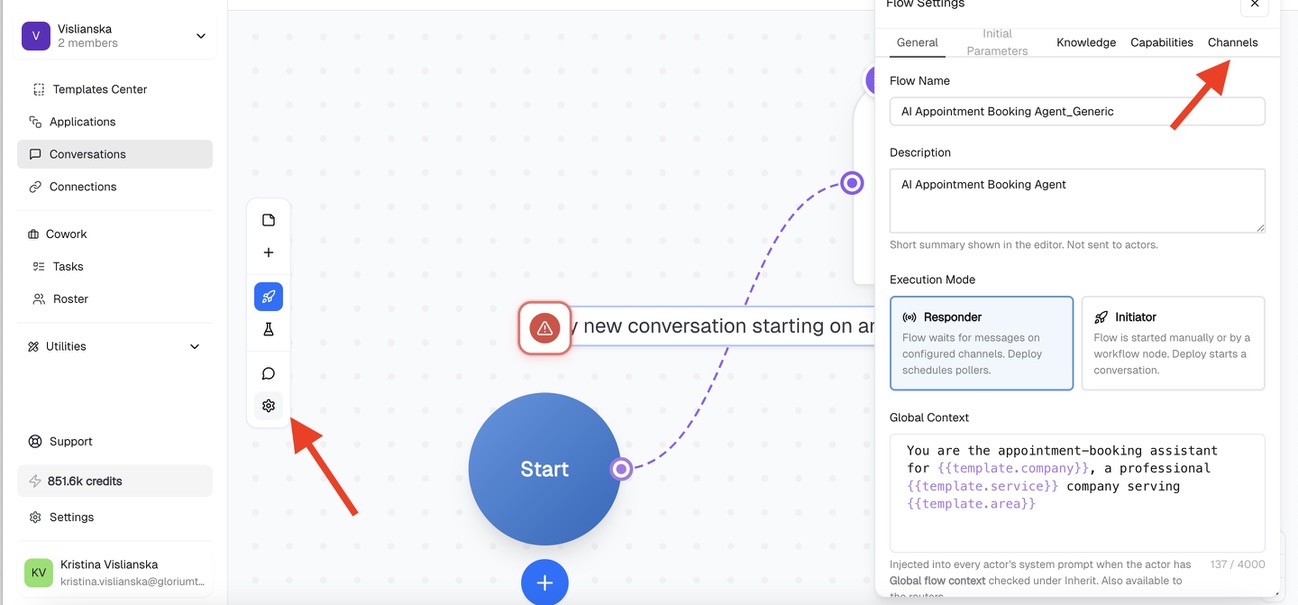
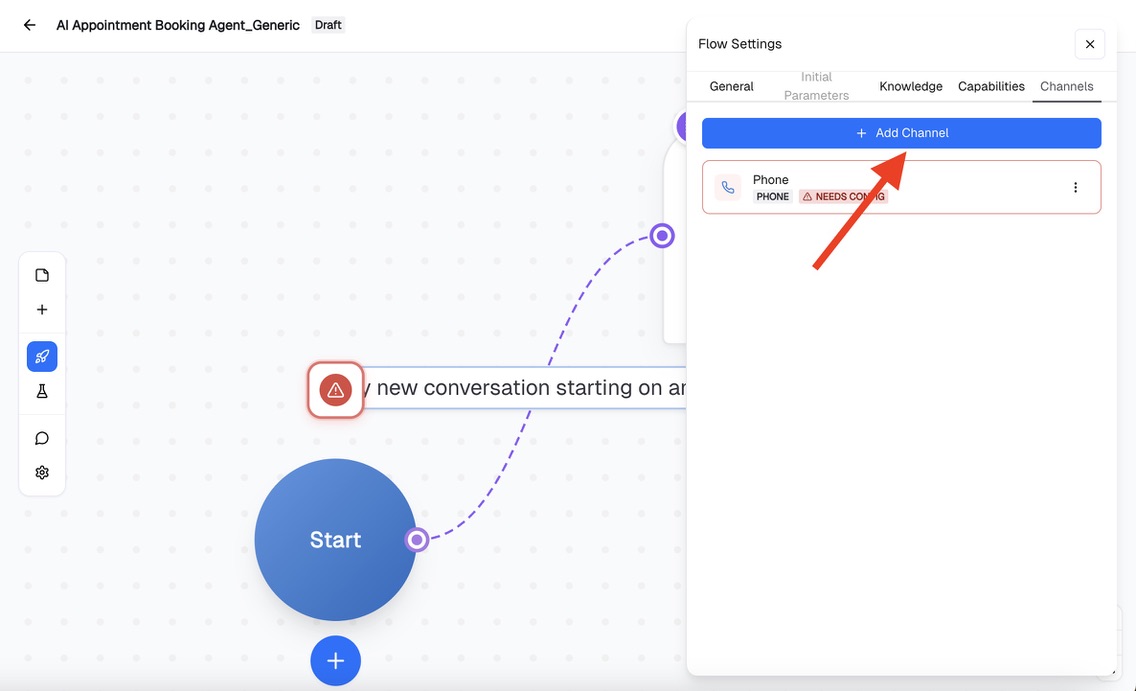
2. Go to the Channels tab.
3. Click + Add Channel.
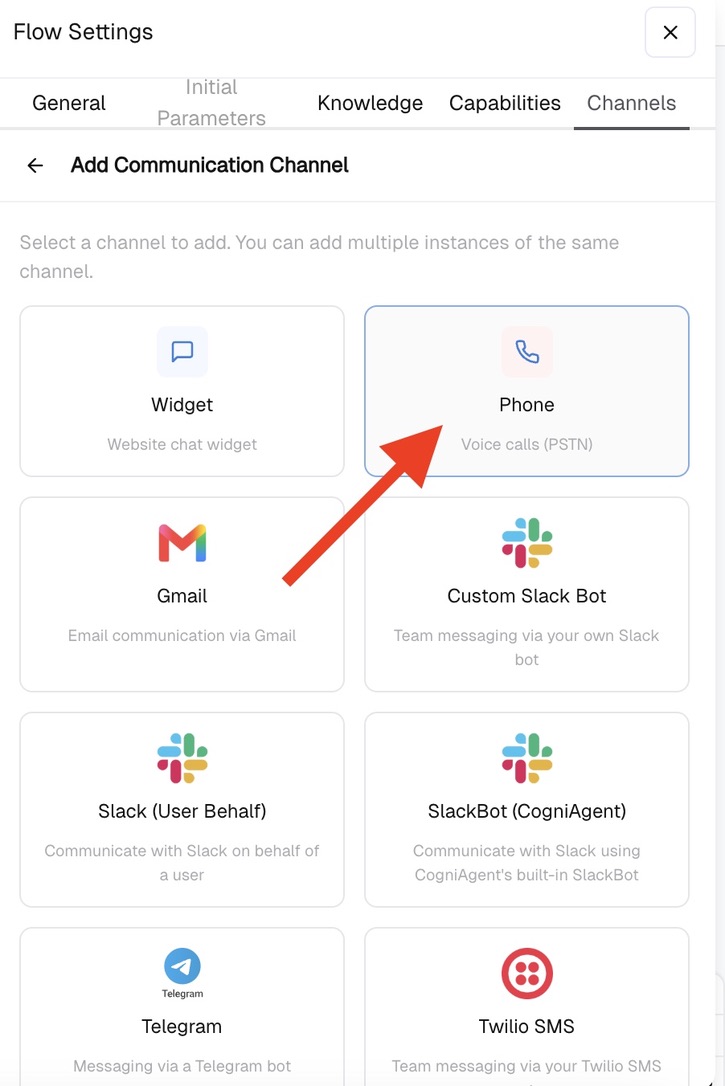
4. Pick Phone — Voice calls (PSTN) from the channel picker.
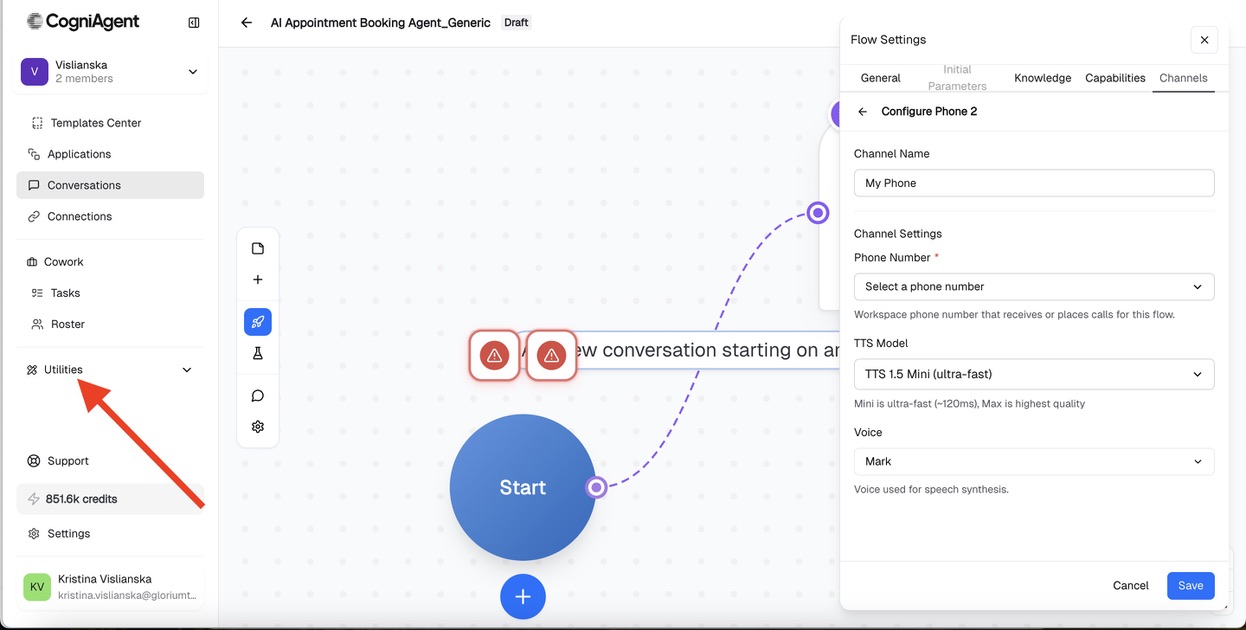
5. Give the channel a Channel Name – something you'll recognise in the list, like Booking line, not Phone
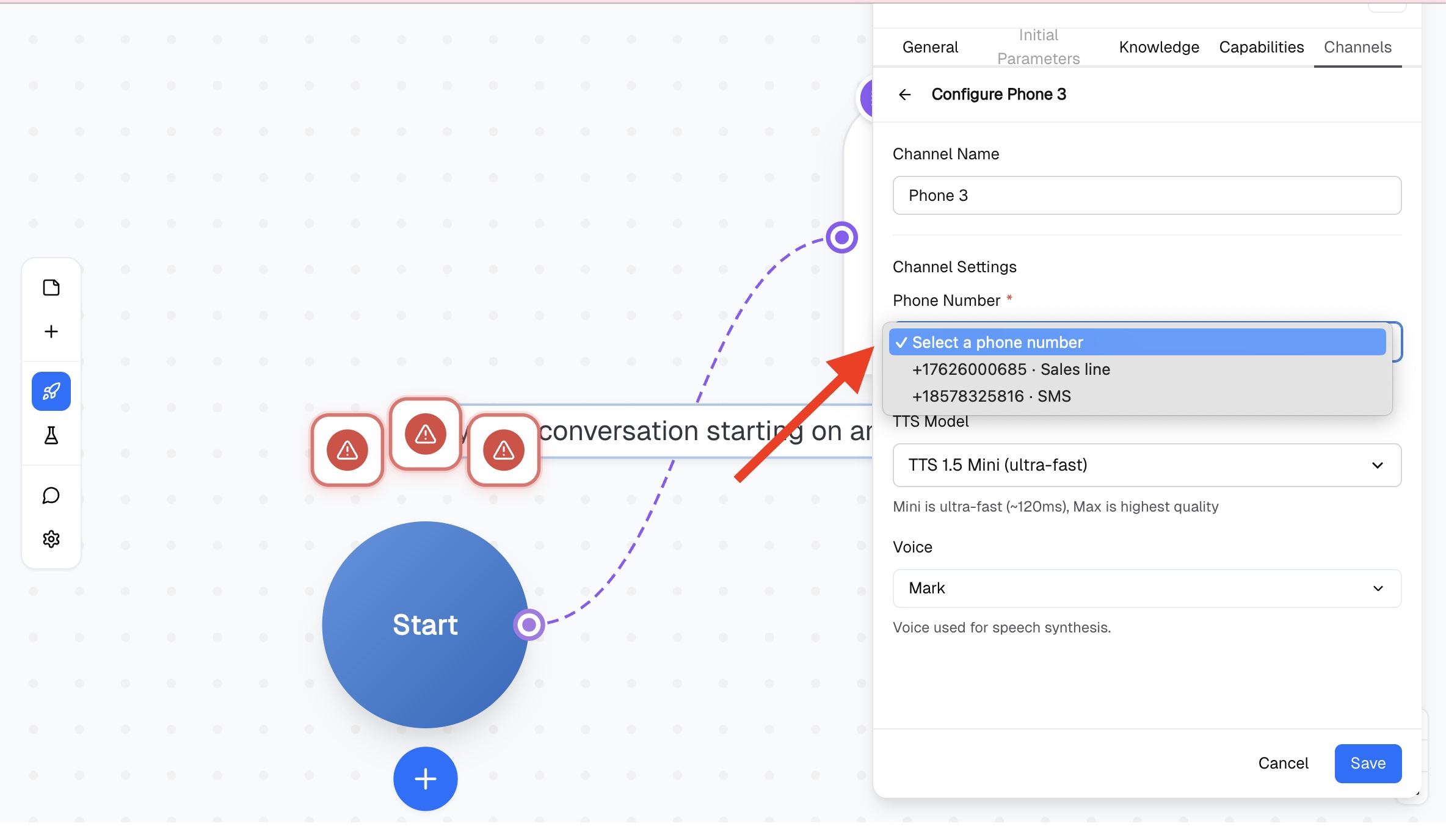
6. Choose a Phone Number from the dropdown. If it's empty, you don't have a number in the workspace yet – see the next section, then come back.
7. Pick a TTS Model. TTS 1.5 Mini is ultra-fast (~120ms) and is the right default for booking, triage and anything conversational, where a pause reads as a dropped call. Max is higher quality and worth it when the call is more of a read-out than a back-and-forth.
8. Pick a Voice – Mark is the default. You can browse and choose among different voices.
9. Click Save. The channel shows NEEDS CONFIG in the Channels list until a number is bound, so that badge is your check that the setup actually took.
One thing to set on the General tab while you're there:
Execution Mode. Responder means the flow waits for a call to come in – that's what you want for an inbound line. Initiator means the flow starts the conversation, which is what an outbound calling campaign needs.
Getting a phone number into your workspace
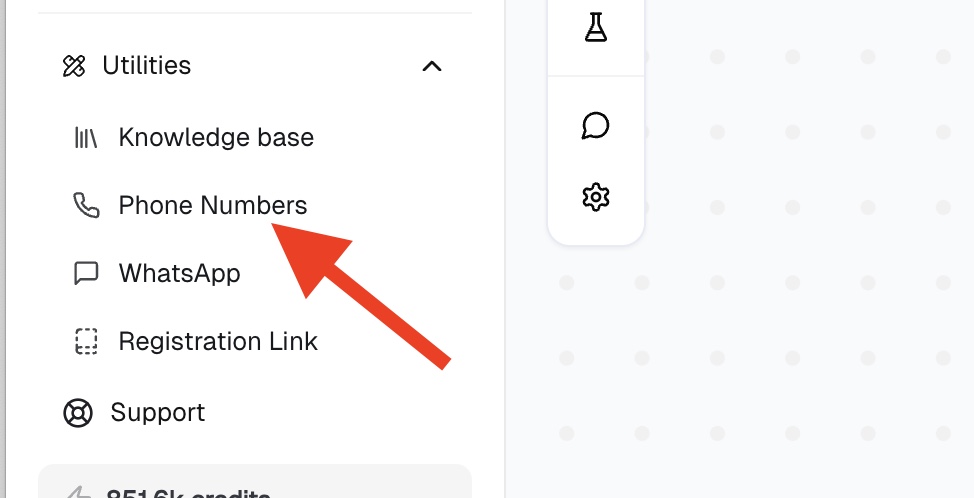
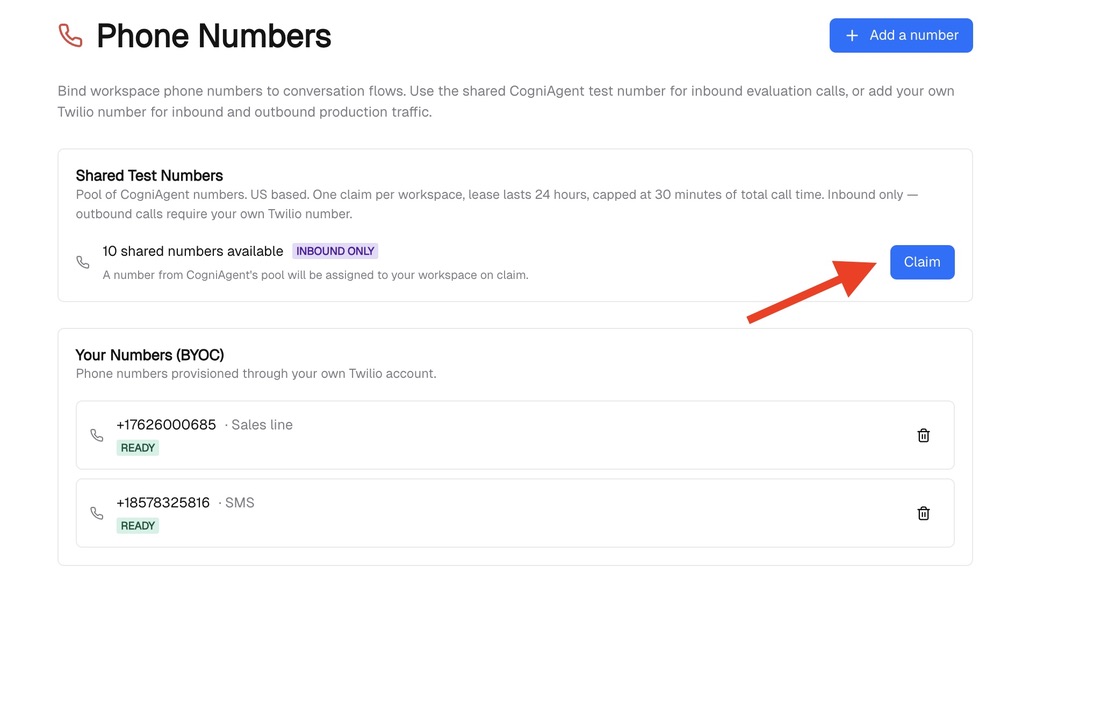
Numbers live at the workspace level, not inside the flow. In the left sidebar, expand Utilities and open Phone Numbers. There are two ways to get one.
When to use this:
How to set it up: In the Shared Test Numbers panel, click Claim. A number from CogniAgent's US-based pool is assigned to your workspace. The limits are deliberate: one claim per workspace, a 24-hour lease, and 30 minutes of total call time. It's an evaluation number, not a soft launch.
When to use this:
How to set it up:
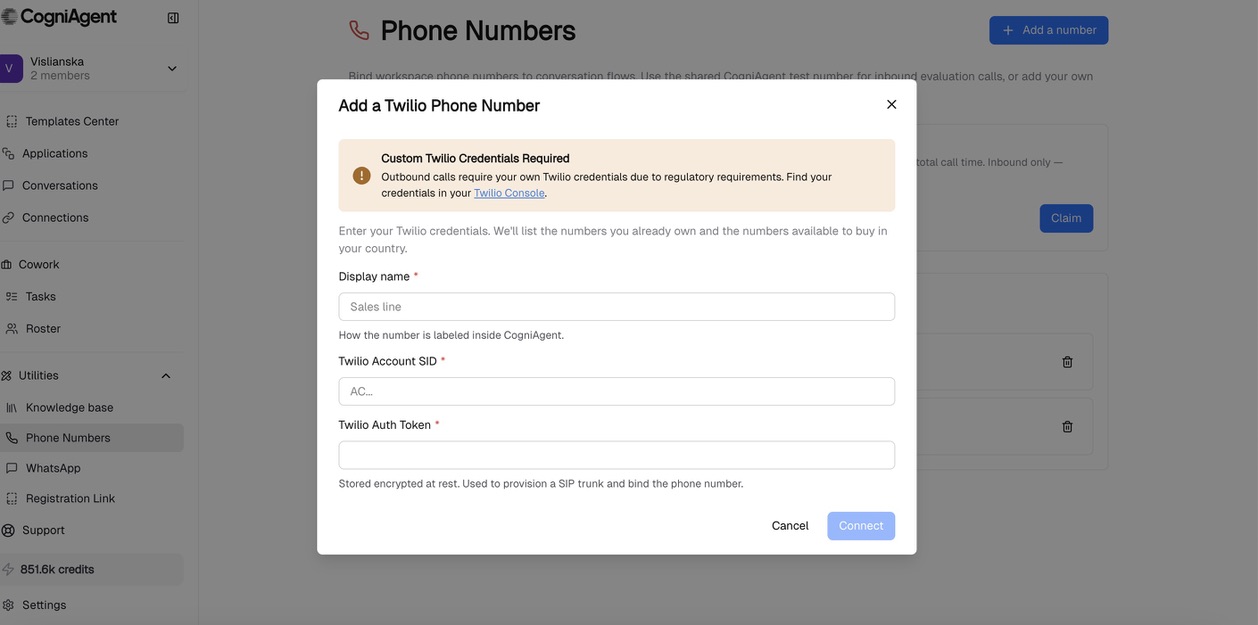
Click + Add a number, then fill in the Add a Twilio Phone Number dialog: a Display name (how the number is labelled inside CogniAgent — Sales line, SMS), your Twilio Account SID, and your Twilio Auth Token. Both are in your Twilio Console. Once connected, CogniAgent lists both the numbers you already own and the numbers available to buy in your country. Numbers show READY when they're bound and usable.
Back in Flow Settings -> Channels -> Phone, the Phone Number dropdown now lists everything in the workspace. Pick one and save.
Claiming a shared number and then going live on it. The lease is 24 hours and the cap is 30 minutes of call time. Real callers will hit a dead line by tomorrow.
Choosing Max TTS for a conversational flow. The extra latency on every turn is what makes a voice agent feel broken – callers talk over it or hang up. Use Mini unless the flow is mostly monologue.
Leaving Execution Mode on Responder for an outbound campaign. The flow will sit there waiting for a message that never arrives, because nobody is calling in.
Assuming a shared number can dial out. It can't. Outbound needs BYOC, and that's a hard regulatory constraint, not a plan tier.
Writing the flow for text and hoping it reads well aloud. Bulleted lists, URLs and long option menus that work fine in the widget become unlistenable on a call. If a flow is going to serve both, check the Instructions for anything that only makes sense on a screen.
Phone is a channel like any other: add it in Flow Settings -> Channels, bind a number, pick a voice. Start with a claimed shared number to hear the flow on a real call, and move to your own Twilio number the moment you need outbound calling, a non-US area code, or a line that's still alive next week.