How to Use Knowledge Base in CogniAgent for Product-Aware Agents
 Jun 19, 2026
 6 min read
 Jun 19, 20266 min read
Reading time: ~6 minutes Level: Beginner to intermediate What you'll build: An agent that answers customer questions accurately – pricing, services, FAQs – by pulling from your own documents
An AI agent that doesn't know your business is a liability. Ask a generic LLM about your pricing and it will guess. Ask it about your service area, your cancellation policy, or whether you cover a specific neighbourhood – and it will confabulate a confident, plausible, wrong answer. The Knowledge Base in CogniAgent solves this. You upload your documents, policies, and FAQs once. Your agents pull from them at runtime, every time – answering based on what your business actually says, not on what the model assumes. This guide walks you through how to set it up and how to wire it into your workflows.
The Knowledge Base is a standalone section in your CogniAgent account, separate from your Applications (workflows) and Conversational Flows. Think of it as a library your agents can consult – not a node in the workflow itself. What you can store there:
What it doesn't do: It doesn't replace your workflow logic. It doesn't make decisions. It gives your agent accurate facts to draw from – the agent still decides how and when to use them.
Tip: Name your documents clearly. When you're connecting them inside an actor, you'll select them by name — "Pricing_Sheet_2026" is easier to find than "Document_v3_final."
Once your documents are uploaded, there are two ways to make them available inside a workflow.
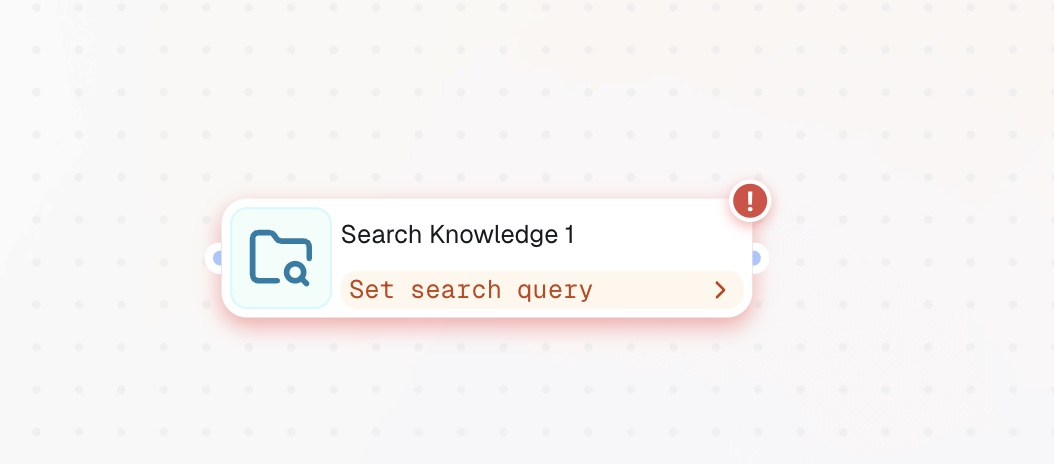
For more precise, programmatic retrieval – when you need to pull specific information at a defined point in your workflow rather than letting the actor decide when to look – use the Search Knowledge node from the Actions category. When to use this:
How to set it up:
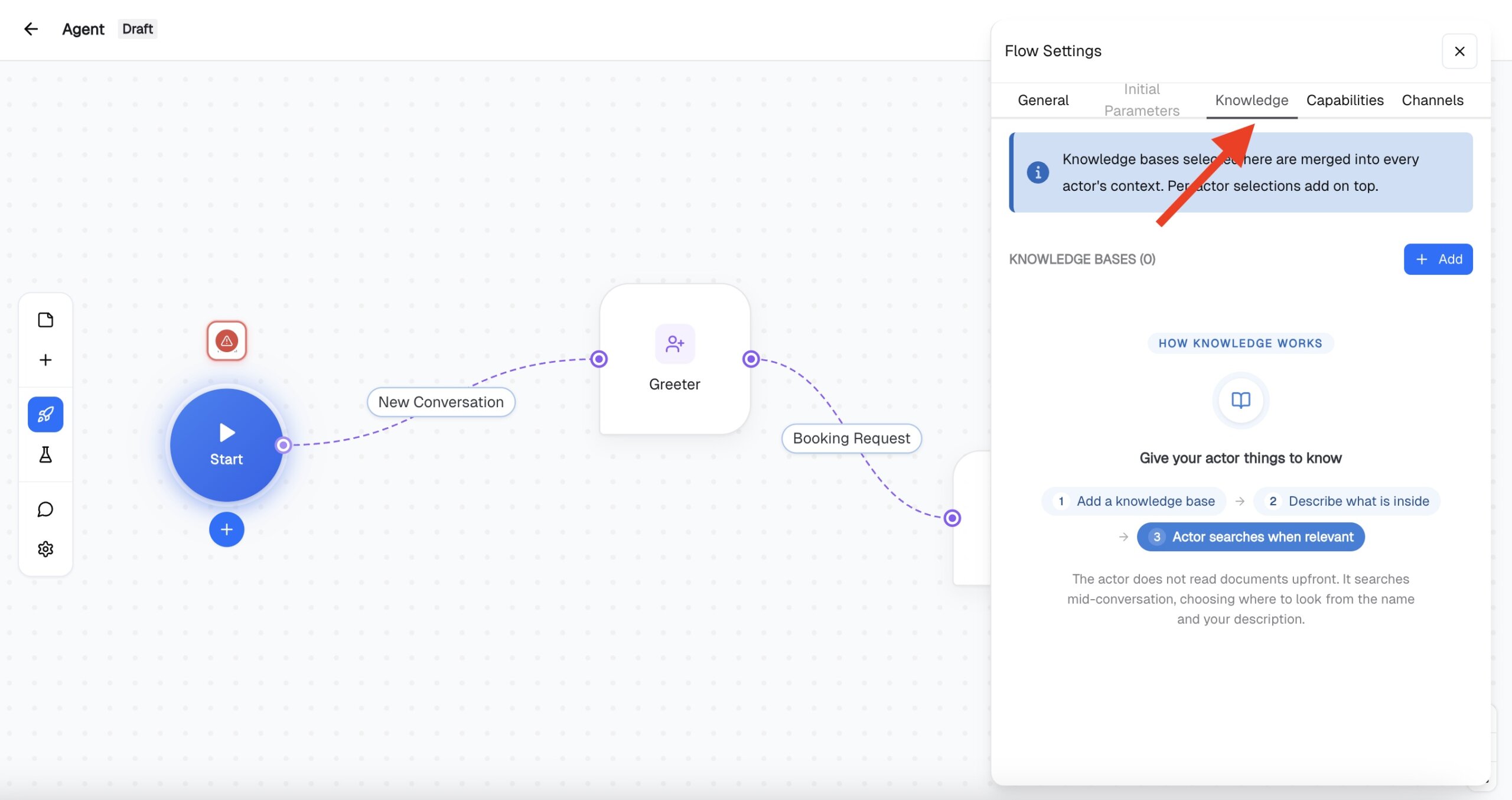
Option 2: Search Knowledge Base directly in Conversational Flow Open the Conversational Flow tab, go to flow settings, and connect your Knowledge Base in the dedicated tab. The actor doesn't read the documents upfront – it searches mid-conversation, choosing what to look for based on the document name and your description.
The agent is only as accurate as the document you feed it. A few principles: Be specific, not exhaustive. A 40-page brand bible uploaded without parsing instructions will produce unfocused results. Break it into smaller, focused documents: one for pricing, one for service area, one for FAQs. Use the "What to Parse" field. This is the most underused feature. Telling CogniAgent to focus on specific sections (and ignore others) significantly improves retrieval quality. Store your ideal customer profile (ICP) here. If your agent is qualifying leads, upload your ICP as a Knowledge Base document. The agent can then qualify candidates against your real criteria – not just the fields in the form. Keep it current. If your pricing changes, update the document. Agents pull from whatever is uploaded – stale documents produce stale answers.
Goal: A website widget agent that can answer questions about services, pricing, and availability — and book jobs. Knowledge Base documents:
Connecting the Knowledge Base but not specifying what to parse. The agent will read the whole document and may quote irrelevant sections. Always specify what matters. Uploading a single giant document. Harder to retrieve from, harder to update. Smaller, focused documents work better. Using the Knowledge Base for workflow logic. The Knowledge Base stores facts, not decisions. Use Condition and Multi-Condition nodes for branching logic – not a document that says "if the customer asks X, do Y." Forgetting to update it. Agents answer based on what's uploaded. A pricing document from last year will produce last year's answers.
The Knowledge Base in CogniAgent is what separates a generic LLM response from an agent that actually knows your business. Upload once. Connect to your actors or use the Search Knowledge node to retrieve programmatically. Keep documents focused and current. The two connection methods – actor-level attachment for conversational retrieval, and the Search Knowledge node for precise mid-workflow queries — cover most use cases. Start with actor-level attachment for support and FAQ agents. Add Search Knowledge when you need to branch or route based on what the documents say.