How to Set Up a Daily Sales Report in Shopify Using CogniAgent Automation
 Mar 19, 2026
 2 min read
 Mar 19, 20262 min read
Change starting your day by manually pulling Shopify reports. This workflow automatically fetches your store's orders every morning, calculates total revenue, and delivers a clean summary straight to your inbox — before you've even had your coffee.
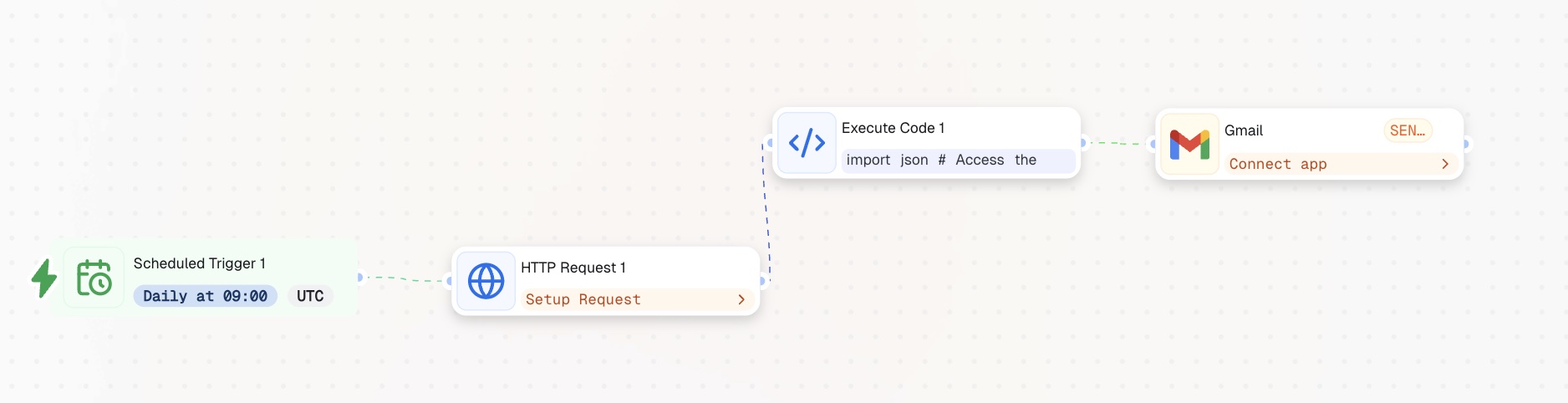
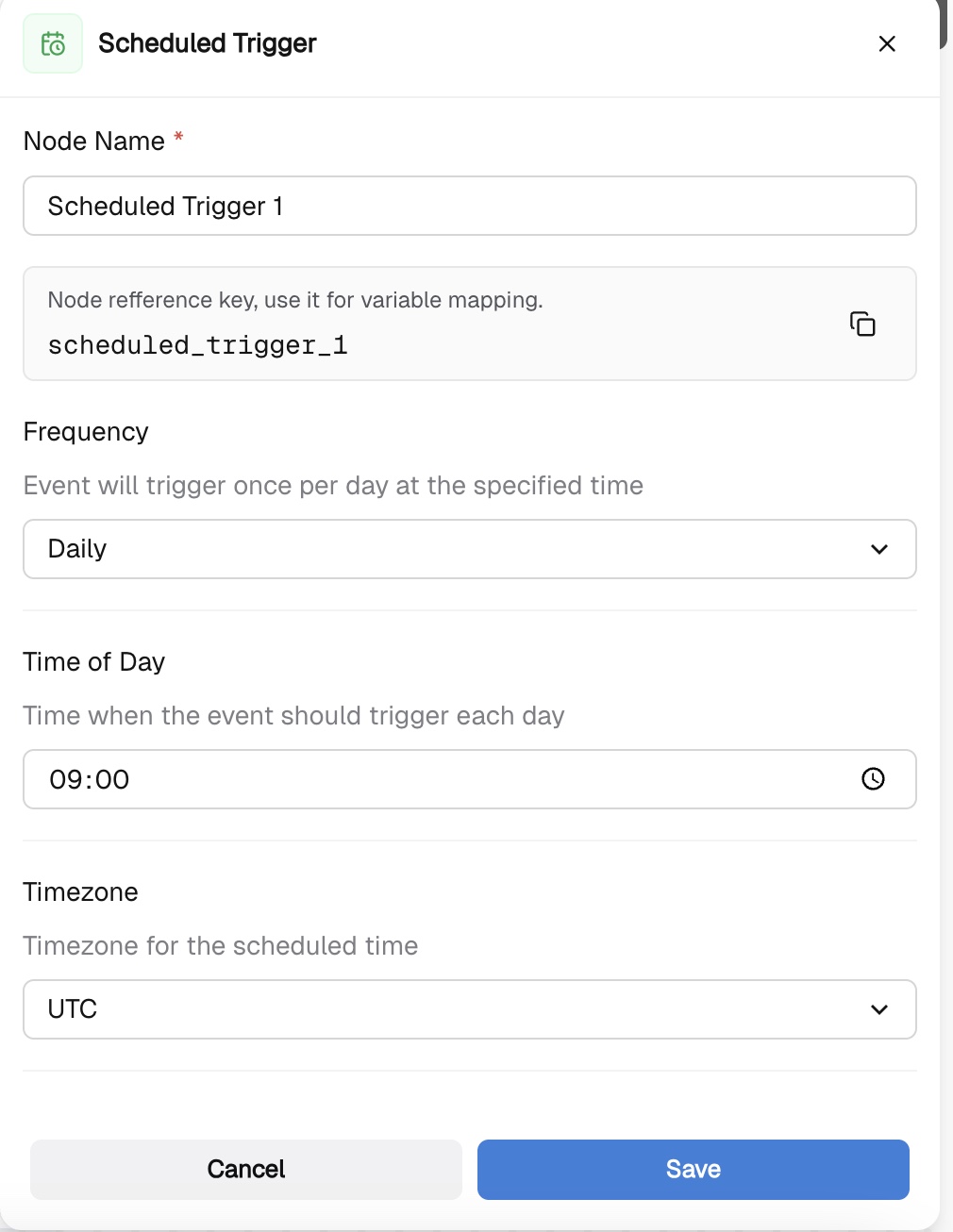
Add a Recurrent Event node to start the workflow. This is your trigger — it fires the automation on a fixed schedule without any manual input. Set it to run Daily at 09:00 UTC — or adjust to whatever time makes sense for your team's morning routine.
Connect an HTTP Request node to the Recurrent Event. This calls the Shopify Admin API and retrieves all orders placed yesterday. Paste your store URL into the request field, set the method to GET, and add your Admin API access token as the X-Shopify-Access-Token header. You can find your token in the Dev Dashboard under Settings -> Credentials in Shopify.

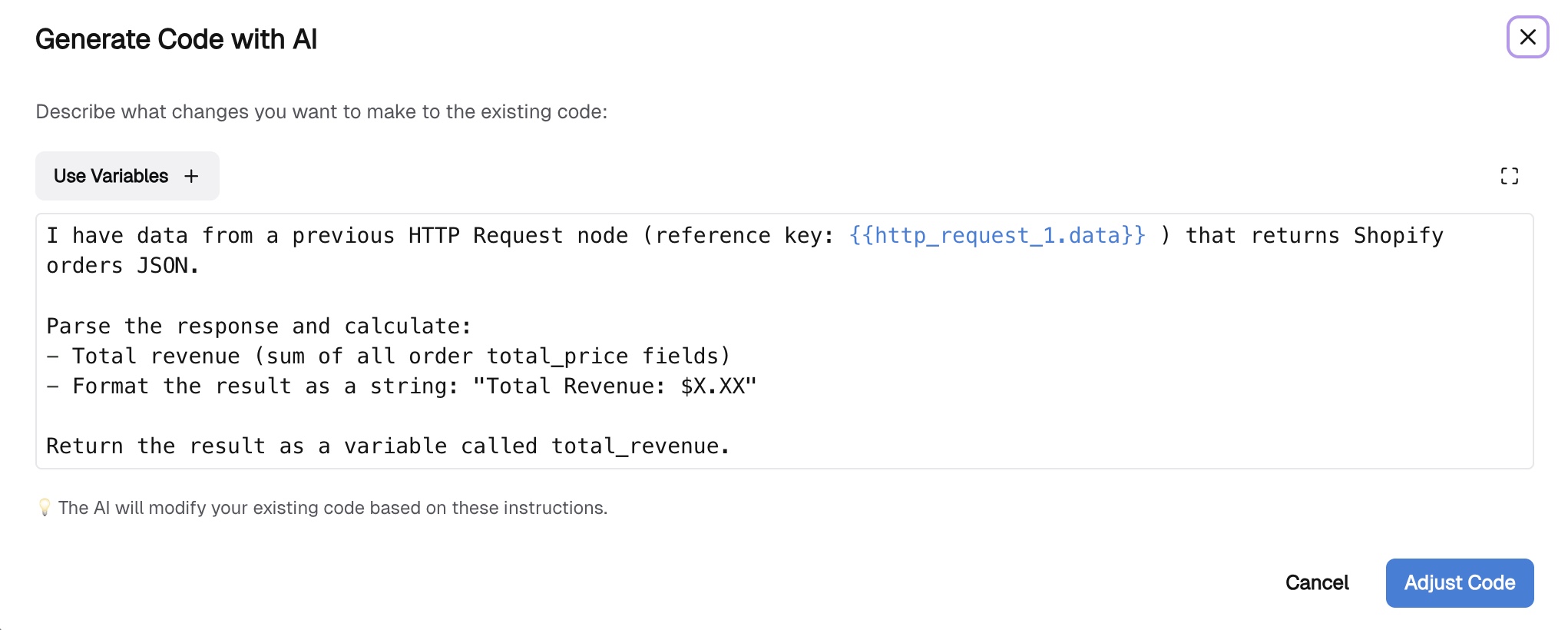
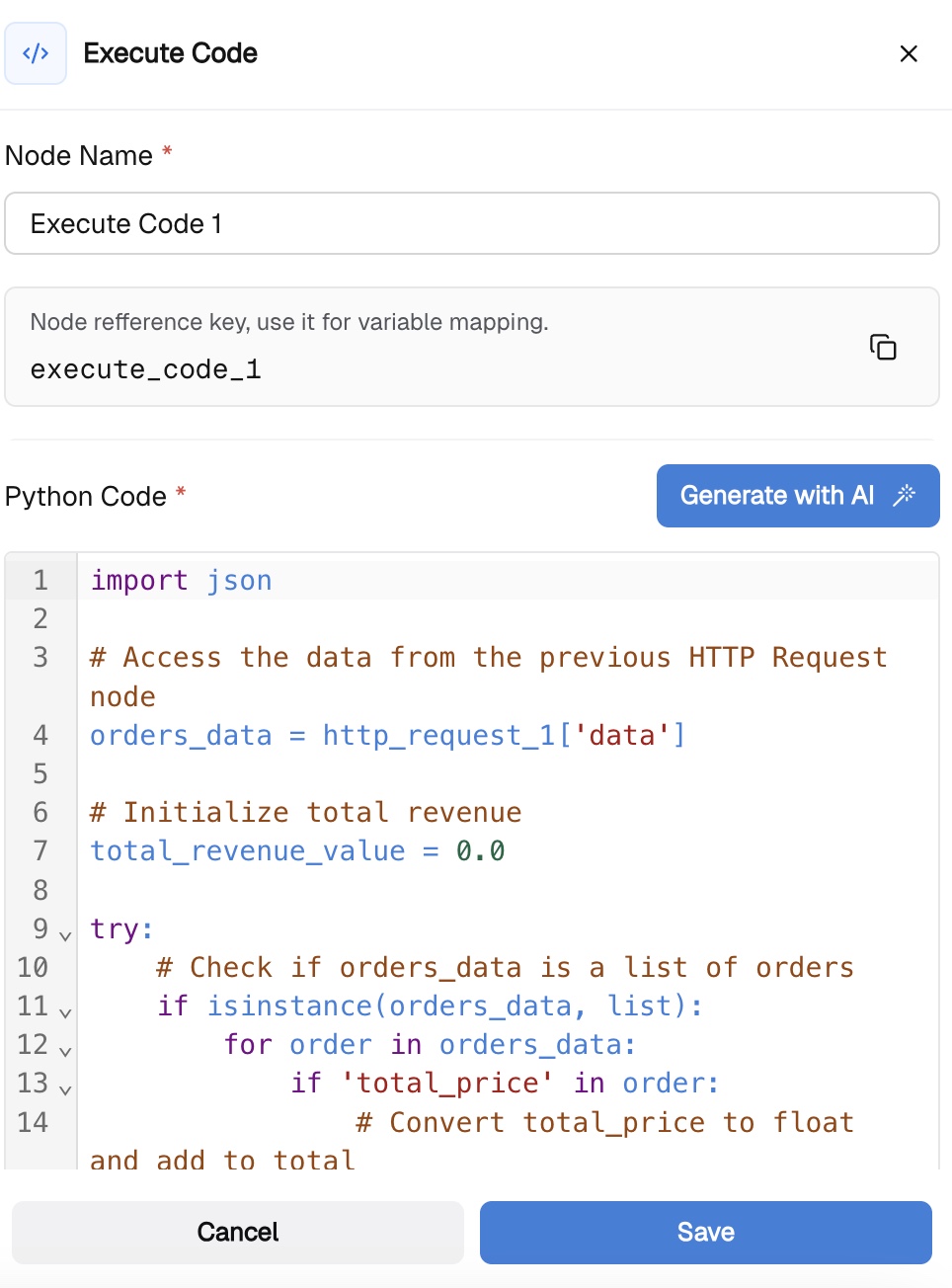
Connect an Execute Code node to the HTTP Request output. This processes the raw orders data and calculates your total revenue for the day. Use the Generate with AI button and paste this prompt: "Parse the Shopify orders JSON from the previous HTTP Request node. Sum all order total_price values to get total daily revenue. Also count the number of orders. Return: total_revenue formatted as $X.XX and order_count."
Add an Email node and connect it to the Execute Code output. Configure it with your email address and map in the revenue and order count variables from the previous step. Set the subject to "Daily Sales Report – {{date}}" and include total_revenue and order_count in the body.
That's it. Every morning, CogniAgent pulls your Shopify orders, calculates the day's revenue, and delivers the summary to your inbox — automatically, without anyone lifting a finger. From there, you can extend the workflow to include top-selling products, compare against the previous day, or route the report to Slack instead.