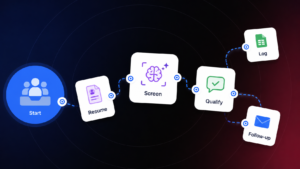
“How much is a deep clean?” isn’t enough for anyone to price or schedule against. Behind that one question sits property size, condition, location, timing, pets, and access. Collecting all of that by hand means a slow back-and-forth for every lead and a different set of questions depending on who happens to answer the phone. This build turns that into one consistent conversation that ends with a summarized brief landing directly in an estimator’s inbox.
The architecture at a glance
This is a Conversational Flow with a single actor. The actor collects the property and service details it needs, one question at a time, skipping anything the customer already volunteered. Once the conversation is complete, a built-in Act action inside the actor summarizes everything gathered, and a connected Gmail integration is what sends that summary to the estimator, with no separate branching logic or downstream Application involved.
Step 1: Connect the customer channels
Configure whichever channels residential enquiries arrive through: Website Widget, Phone, SMS, Gmail, or Outlook. Remove any channel this business doesn’t use. An unused channel sitting connected is one more surface someone has to check when a lead doesn’t show up where expected, and it’s easy to forget it’s live months after setup.
Step 2: Define residential services in Global Context
Add the real service area, service types, add-ons, notice period, and exclusions to Global Context, as plain facts rather than instructions. For example: “We service postcodes within 25 miles of downtown. We offer standard, deep, and move-in/move-out cleaning, plus add-ons for interior windows, oven, and fridge. We require 48 hours’ notice for new bookings. We do not service properties over 4,000 square feet.” This is what every question the actor asks reasons against, so it needs real numbers, not placeholders.
Step 3: Add the Residential Qualification actor
Add an actor named Residential Qualification, with Focus Mode set to Persistent. This conversation needs to reach a complete brief even if the customer’s answers wander, rather than closing out on a partial one.
In Context, alongside the service details from Step 2, list the fields the brief needs: contact details, address and postcode, property type, bedrooms, bathrooms, approximate size, service type, frequency, condition, pets, add-ons, preferred timing, parking, and access constraints.
In Instructions: “Ask one question at a time. Skip any question the customer has already answered in an earlier message. Group related fields into a single natural question where it makes sense, for example property type together with bedroom and bathroom count, rather than asking each one separately. Never state a price, confirm availability, or promise a specific appointment time.”
Set the Definition of Done: “The conversation has finished, and the client has provided all of the necessary details.”
Step 4: Connect the Gmail integration
Open the actor’s Capabilities panel and go to the Integrations tab. Click Add Integration, select Gmail (legacy), and connect the account that should do the sending. Until this is connected, the integration sits there showing NO CONNECTION, and nothing downstream can send anything, regardless of what the actor’s instructions say.
Enable the SEND EMAIL action, which sends via the Gmail API using the authenticated account. In When to use, write the exact trigger condition, since the actor reads this note every time it decides what to do next: “Send a summary email to {{estimator_email}} when the conversation has finished.” Replace the placeholder with the real estimator address, the same way as the Act action in Step 5; this note is a second place that address needs to be correct, not a duplicate of the same setting.
Step 5: Add the Prepare Outcome act action
In the actor’s Advanced tab, add an Act action named Prepare outcome.
In What should happen here?, write: “Summarize the residential brief, and send the summary of the call to {{estimator_email}}.” This action decides what the summary says; the Gmail integration from Step 4 is what carries it out. Without that integration connected, this instruction has nothing to call.
Leave Definition of Done for this action set to: “The conversation has finished, the client has provided all of the necessary details.” This is optional and CogniAgent will infer it from the instruction above if left blank, but spelling it out here keeps the action from firing on a conversation that’s only partway through.
Leave Wait for the user to reply turned on. This action runs once the qualifying conversation is finished, not mid-sequence between two of the actor’s own questions, so there’s no reason to disable the wait here.
Step 6: Test representative homes
Run test conversations for a recurring cleaning enquiry, a move-out cleaning enquiry, and a case with missing property information. Confirm the actor never states a price or confirms availability in any of them, and confirm the summary email arrives at the estimator’s address with the full brief once each conversation reaches its natural end, not a partial one triggered early.
Step 7: Deploy
Deploy once the channel connections, the Gmail connection, and the summary email have all passed testing. An estimator who never receives the email has no way to know a qualified lead came through, even if the conversation itself went perfectly, and an unconnected Gmail integration is the most likely reason that email never sends.
What this saves the business
Every enquiry that reaches an estimator today probably went through a slightly different set of questions depending on who took the call and what they remembered to ask. That inconsistency is what turns “quick to quote” into “call the customer back for the property details we forgot to ask.” This build asks the same complete set every time and lands the summary directly in the estimator’s inbox, so there’s a usable brief waiting the moment the conversation ends instead of a transcript someone still has to read and organize by hand.