Article Updated Nov 27, 2026
 8 min read
AI Recruiting: How to Test Candidate Screening Before Launch
Updated Nov 27, 20268 min read Updated Nov 27, 20268 min read
Test AI candidate screening on one role with synthetic applications. Write the expected outcome for each case before running the workflow. Compare the candidate’s message with the saved application and the recruiter’s queue. Check that corrections update the right record, repeated submissions leave one application, and cases that need a person reach the assigned recruiter before the workflow handles real applicants.
Use the published role requirements to decide what the workflow can ask, save, and send for review. Name a rules owner who maintains those requirements and a recruiter who decides whether an application advances.
For this example, the Evening Support Associate role (ROLE-A) requires coverage Monday through Friday from 4 to 8 p.m. in the role’s stated time zone. The workflow collects the applicant’s stated availability, records the source of the reply, and flags an unclear answer or a schedule conflict for review. The recruiter decides what happens next. This test assumes you already have a workflow to run. How to Build a Candidate Screening Application in CogniAgent
Before testing, agree on four things.
Keep this test focused on initial screening. Use a separate review for any later, more detailed assessment of the candidate’s experience or qualifications. How to Build a Candidate Qualification Agent in CogniAgent
For each synthetic application, check three things independently. The reply shows what the applicant stated, the test register shows what the workflow saved, and the recruiter’s queue shows what reached the reviewer. The recruiter owns the decision. Labels such as unknown and needs clarification are examples for this test matrix.
Illustrative test cases and expected outcomes for AI candidate screening
|
ID |
Synthetic input |
Expected workflow outcome |
Where to verify |
|---|---|---|---|
|
T01 |
|
Save the stated days and times with a reply reference. Make the record available to the recruiter. |
One row in the test register with the right |
|
T02 |
“Evenings usually work.” |
Ask which days and hours the applicant can work. Leave availability |
Saved record shows the missing detail. The application stays at its current stage and no rejection is sent. |
|
T03 |
“I can work Friday.” Then, “Correction: I can’t work Fridays.” |
Update Friday to unavailable on the same application. Keep the earlier reply in history if your workflow has one. Flag the schedule conflict for recruiter review. |
Check the corrected reply, the original application ID in the register, and the schedule conflict in the assigned recruiter’s queue. |
|
T04 |
The form says the full shift works. A later email says Thursdays are unavailable without identifying the message as a correction. |
Flag the discrepancy for recruiter review. Ask for clarification if the role rules call for it. |
The review task identifies the discrepancy, links both sources, and names the owner. |
|
T05 |
No reply arrives by the configured deadline. |
Record that no response arrived. Send a reminder only if the agreed test rule calls for one. |
Check the saved state and outbound log. The workflow leaves availability undecided and sends no rejection. |
|
T06 |
Run the same synthetic profile twice in isolated tests. Change only the displayed name. |
The route, work-related fields, and reason for review match. Only the name field changes in the candidate data. |
Compare the two test records using the same rules and check the recorded reason for each outcome. |
|
T07 |
“Can I complete the screening in another format?” |
Send an alternative-format request to the assigned staff member and leave the application at its current stage. |
Confirm delivery to the named owner. Check that the task and notification carry only what the owner needs to arrange the alternative. |
|
T08 |
Resubmit the same |
Keep one application record and one expected notification for it. |
Count the saved rows and actual sends before and after the replay. Confirm the original row remains tied to |
|
T09 |
The same synthetic applicant submits a new application ID for |
Keep a separate application for each role. Record the replies under the role they concern. |
Find two records with the correct application and role IDs. Check that availability from |
|
T10 |
The test register is unavailable or the write returns an uncertain result. |
Log the failure or uncertainty and direct it to the assigned reviewer. When the register is back, check the application ID and outbound log before retrying. |
Confirm the workflow gave no false save confirmation. Check the final row count and outbound log after any retry. |
To verify a correction, open the candidate’s final reply and find the application by its original ID. Check that the saved field reflects the reply and that the assigned recruiter can see any conflict with the role. A confirmation message by itself leaves the write unverified. If you can’t confirm the record or the review task reaches the wrong person, mark the workflow test as failed. How to Test an AI Agent Before Launch
Illustrative test log for T03. This filled row shows how to document a failure using fictional evidence. PASS and FAIL describe the workflow test.
|
Test ID |
Role and rules version |
Expected record |
Observed record |
Evidence |
Test result |
Reviewer |
|---|---|---|---|---|---|---|
|
T03 |
|
|
|
Corrected test reply and test-register snapshot for |
FAIL. The earlier answer remained in the current record. |
Recruiter responsible for |
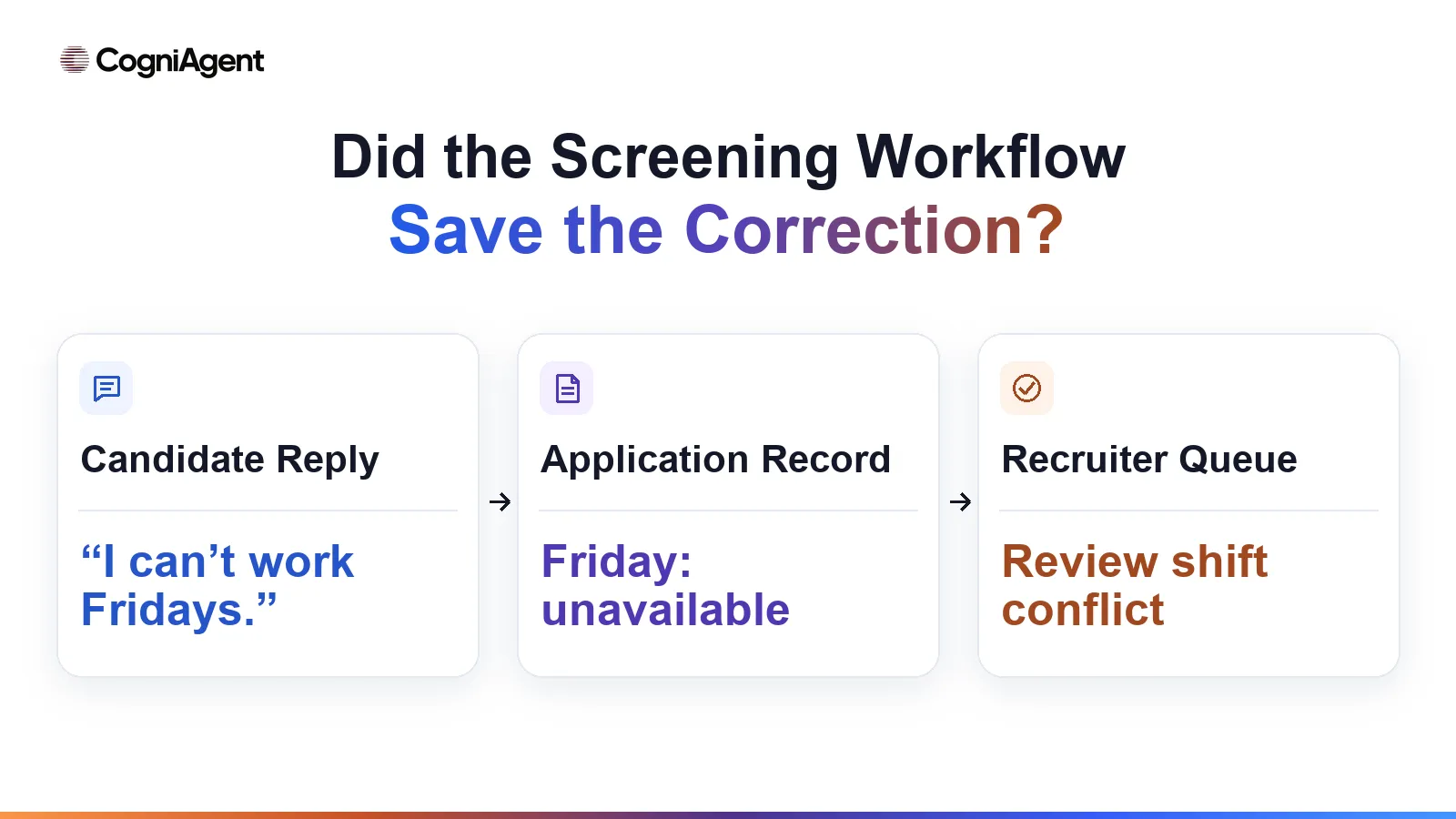
Expected outcome in the illustrative test: the corrected availability appears in the application record and the shift conflict reaches the recruiter.
For this example, start a one-role pilot only after the responsible recruiter confirms that there are zero unresolved launch blockers and that each exception reaches its assigned owner.
Ten synthetic cases can expose specific workflow defects. A single paired name test covers one input change. Assessing screening quality and effects across groups takes a broader evaluation under the recruiting team’s procedures and the rules that apply where it hires.
If you use CogniAgent’s AI agent builder, run the checks on a separate test copy of the documented template. The AI Candidate Screening Agent uses Google Sheets to hold the Jobs, ScreeningRules, and Applications tabs and Gmail to send screening messages. The template writes back a result and reason and routes borderline cases to a recruiter. Its documentation says recruiter confirmation is required for rejections by default. AI Candidate Screening Agent
Connect a test-only Google account and use a test mailbox for the recruiter. The template looks for an existing workbook named CogniAgent Recruiting Data, so confirm the connection can only reach test data before you run it. After setup, add a synthetic row to Applications and set next_action to screen.
Keep automatic declines off. Verify that your test configuration leaves advancement and rejection under recruiter control. Map the matrix’s example fields and review states to your configuration, then check the recorded result and any message the test was expected to send.
Pick one role, copy the matrix, and write the expected record for T01 and T03 before running either case. If you’re evaluating CogniAgent for your hiring team, see the AI Recruiting Agent.