Mar 03, 2026

3 min read

This workflow automatically collects daily sales data from your Shopify store, logs it into Google Sheets, and sends a formatted report to your team every morning at 08:00 — no manual work required.
What You Will Build
A 5-node no-code automation that runs daily and delivers key revenue metrics to your team via Slack or Email.
Prerequisites
- Shopify store with Admin API access
- Google Sheets file named Revenue Dashboard
- Slack workspace or email account connected to your platform
- CogniAgent account
Workflow Architecture
[Recurrent Event]
↓
[HTTP Request] ← Shopify Orders API
↓
[Set Variable] ← Store order_count
↓
[Action in App] ← Google Sheets: Append Row
↓
[Send Message] ← Slack / Email Report
Open you CogniAgent account and let’s start building!
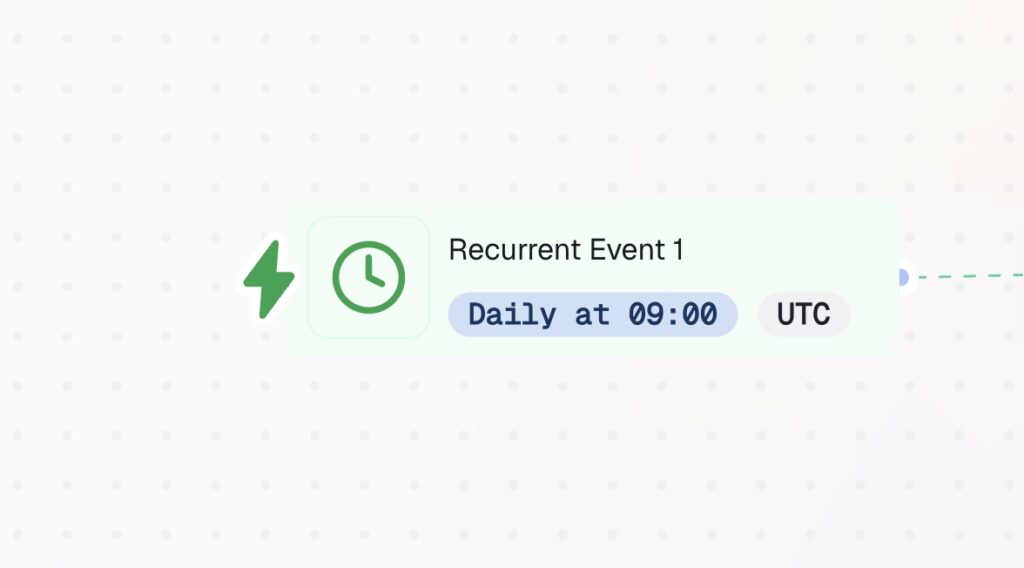
Step 1 — Recurrent Event
Schedule the workflow to fire every day at 08:00.
- Frequency: Daily
- Time: 08:00
- Timezone: your store’s local timezone
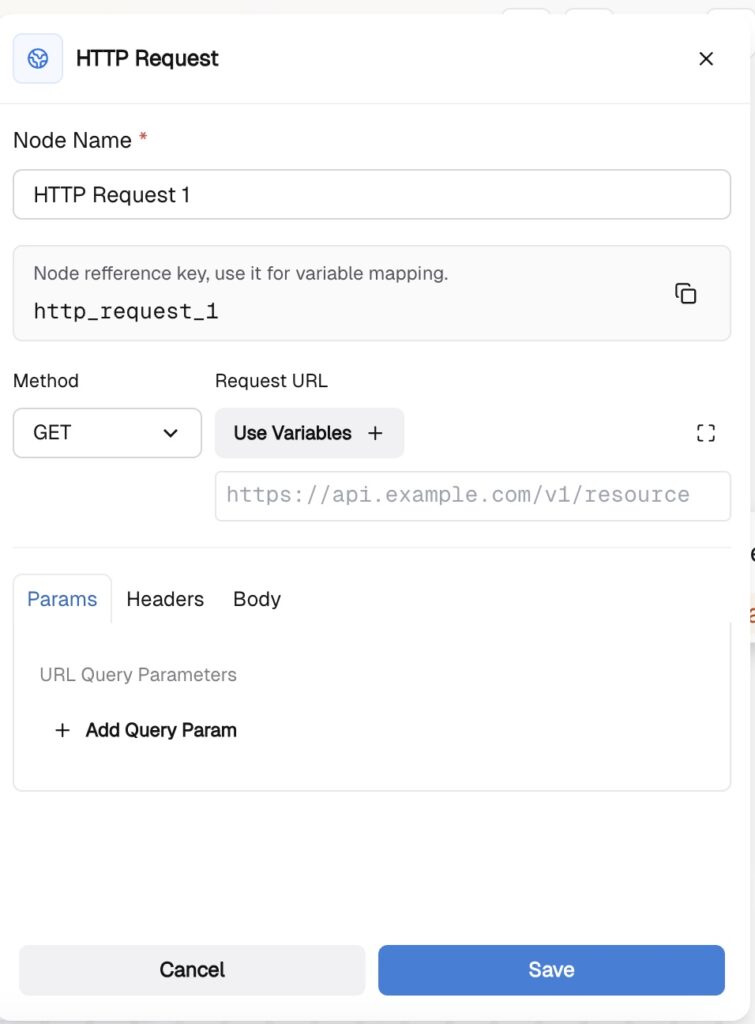
Step 2 — HTTP Request
Fetch paid orders from the Shopify Admin API.
- Method: GET. To read the difference between Get and Post — you can always check our Tips & Tricks page.
- URL (example): https://YOUR-STORE.myshopify.com/admin/api/2024-01/orders.json?status=paid&limit=250
- Header: X-Shopify-Access-Token: YOUR_TOKEN
How to get your token:
Shopify Admin → Settings → Apps → Develop apps → Create app → enable read_orders → Install → copy token.
Step 3 — Set Variable
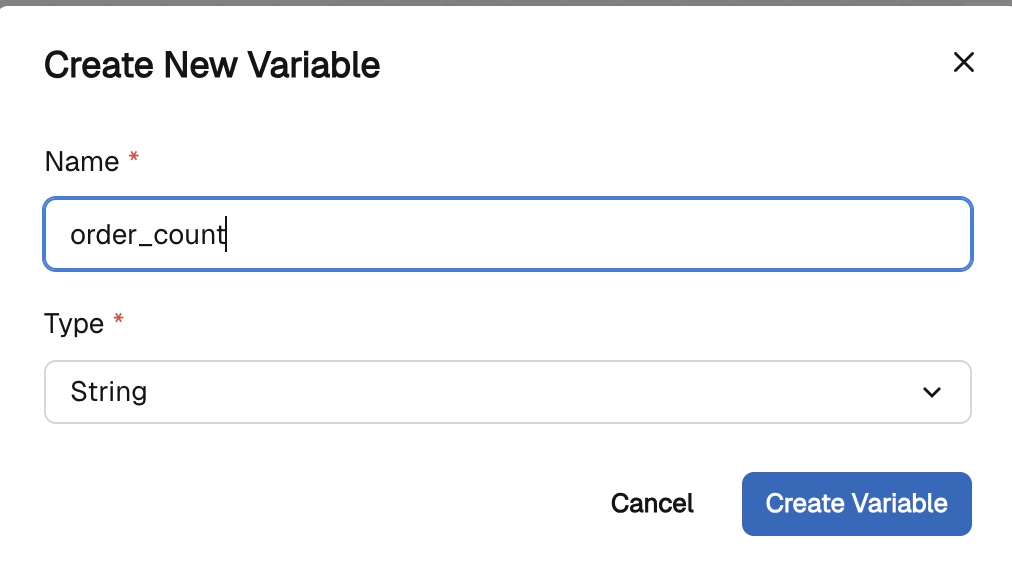
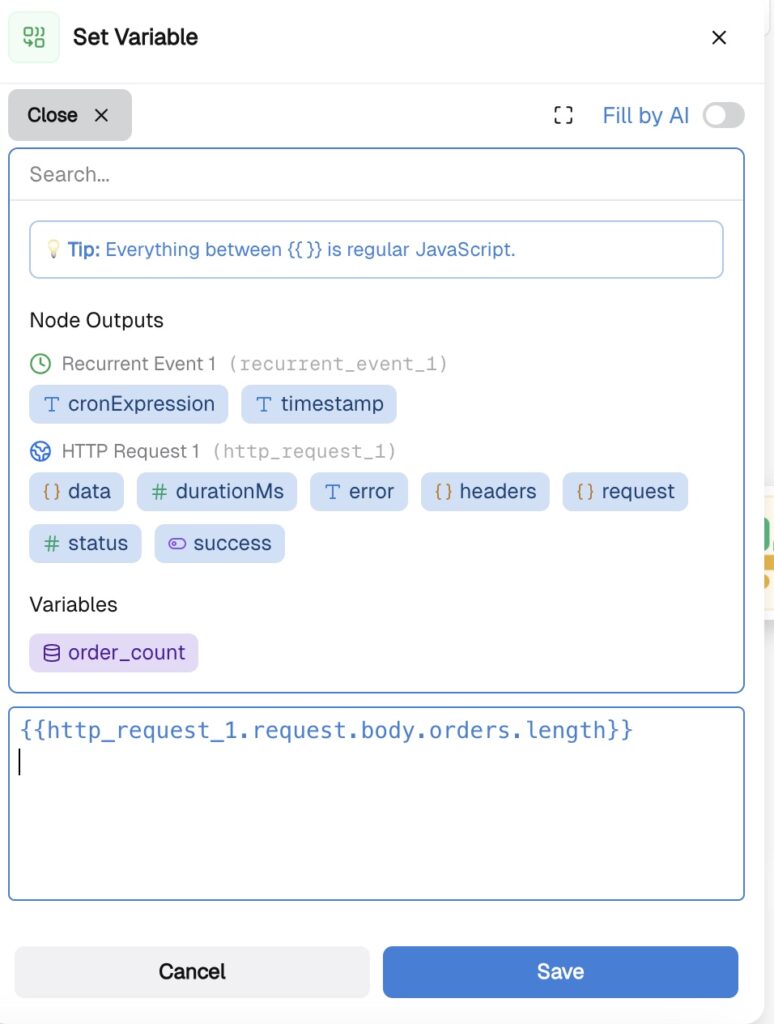
Store the order count as a reusable variable. Choose variable from the Action Nodes:
- Variable name: order_count
- Value: {{steps.http_request.body.orders.length}}
Reference it in all following nodes as {{order_count}} — the name of your variable node.
Step 4 — Action in App → Google Sheets
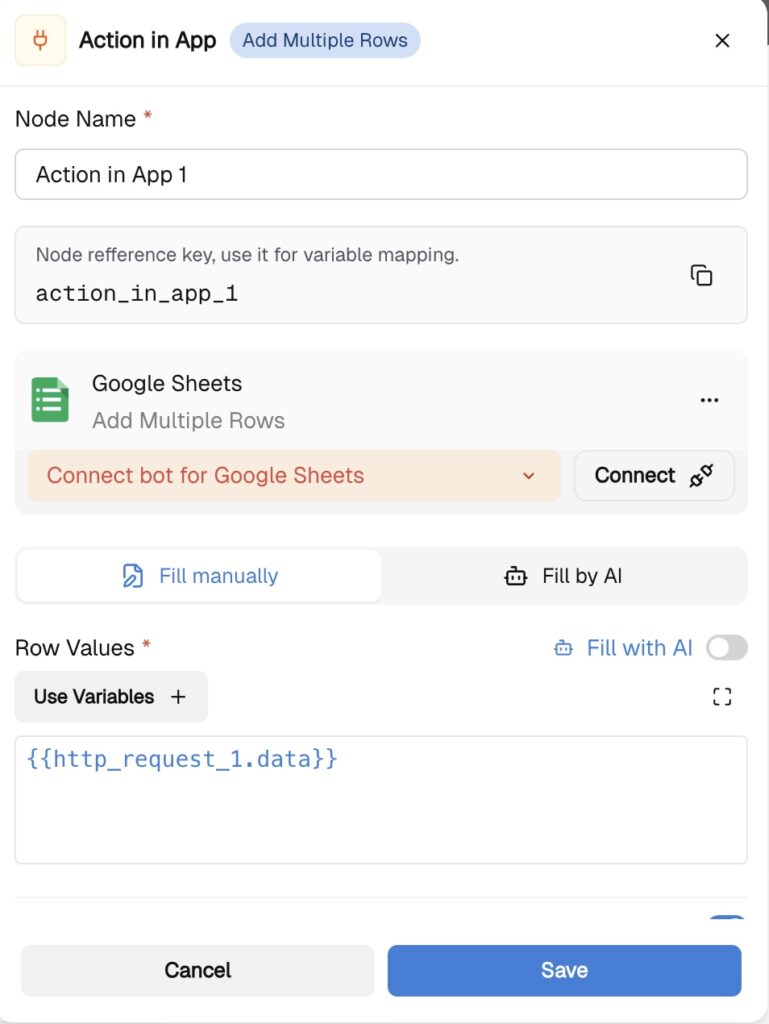
Choose the action: “Append a new row” Google Sheets and connect it to your Google Sheets CRM.
In the variable set the input: {{http_request_1.data}}. The data from your Shopify.
In the Worksheet ID navigate to your Google sheets and find the Sheet ID:
https://docs.google.com/spreadsheets/d/YOUR_SHEET_ID/edit
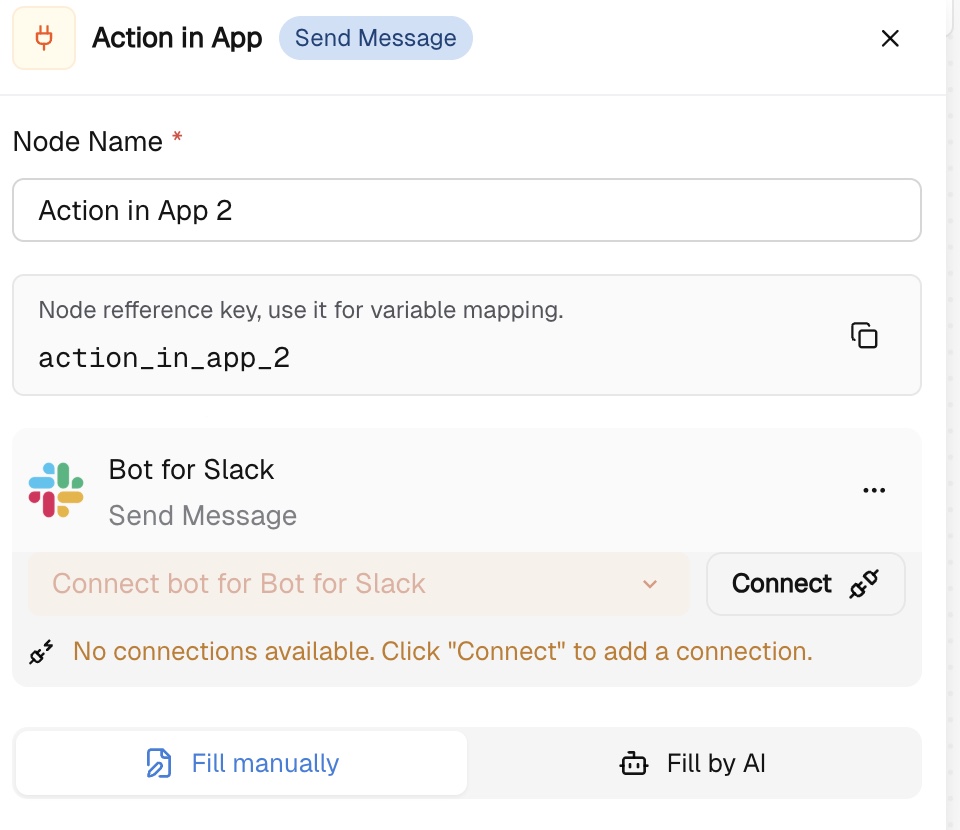
Step 5 — Send Message → Slack / Email / WhatsApp
Send the daily report to your team by mapping the data in the node.
Testing
Click Run!
Debug common issues:
- orders.length = 0 → check date filters in the URL
- HTTP 401 → regenerate your Shopify token
- Sheets not updating → spreadsheet name must match exactly
- Message not sent → re-authenticate Slack / Email connection
That’s it! You can customize your workflow by adding multiple stores, AI summary by inserting LLM node before Send Message, pass the order data, and ask it to write a 3-sentence business summary with trends and anomalies.
Follow CogniAgent other guides and rebuild the workflow automations from day one:
- How to Automate Inquiries from your Web Form into Actions for your Team with CogniAgent
- How to Auto-Fill your CRM with a Received Invoice — or Route it to your Customer Handling Team
- How to Automate Task Management from Meeting Notes in CogniAgent