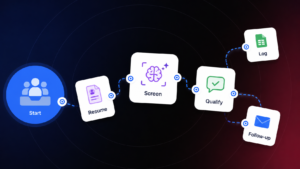
What you can build in CogniAgent in less than 4 Steps


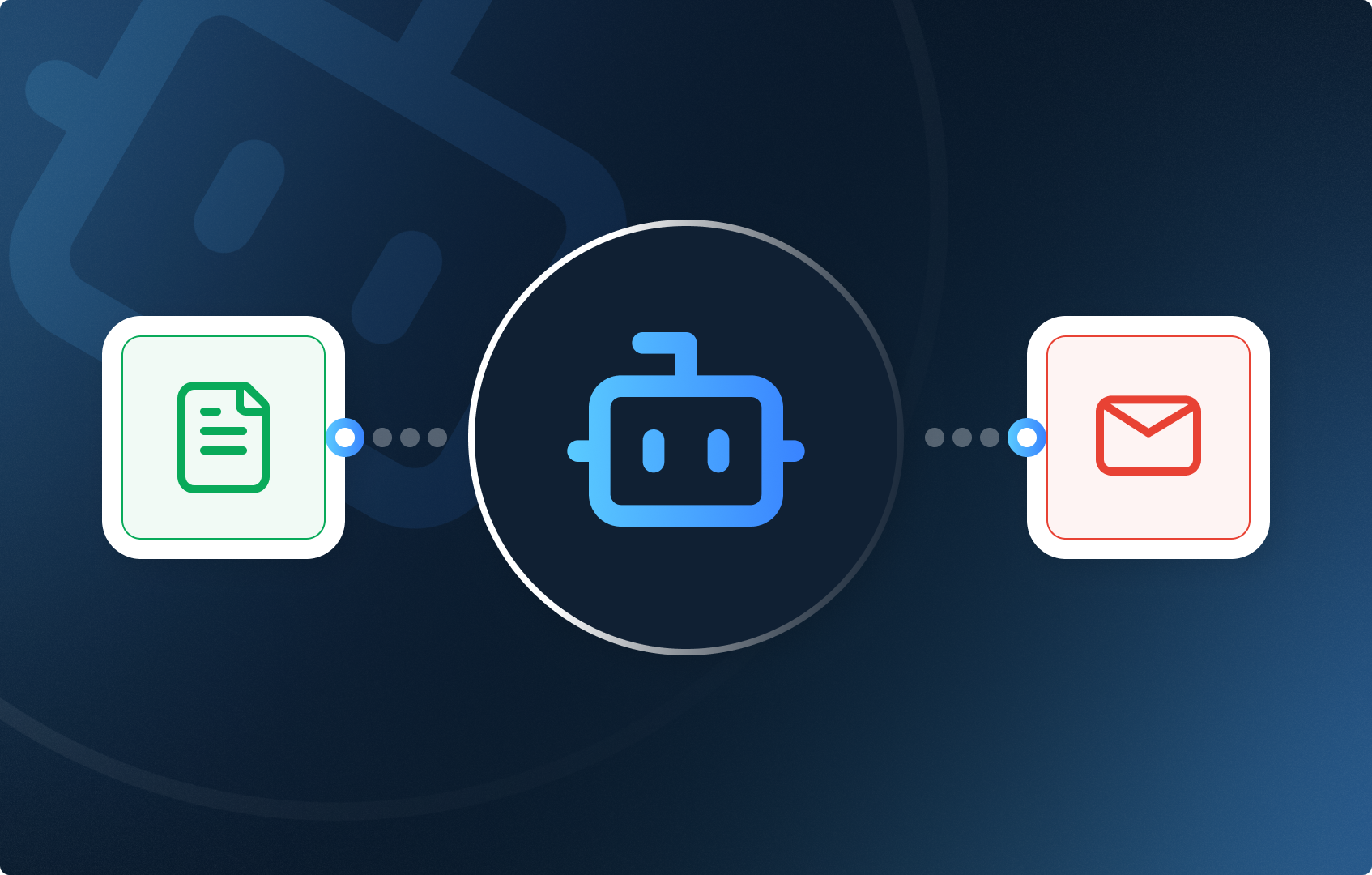
This guide shows how to build practical CogniAgent automations from scratch. You’ll learn what CogniAgent can do, how to think in events and logic, and how to deploy a working automation in under five minutes – with measurable results in days, not months.
CogniAgent is an event-driven AI automation platform. Every action — form submission, data update, message, or API call – is treated as an event.
Unlike traditional rule-based tools with rigid, linear flows, CogniAgent works like a business brain:
Applications are the foundation of CogniAgent. Think of them as one-two-three step workflows that replace manual work.
In just a few steps, you can automate:
You define the logic. CogniAgent executes it.
Let’s build a real example in no more than three steps.

The last thing you would like to do in your already tough schedule – manually review the submitted lead forms, qualifying them and returning to the responsive person to follow up. In many business scenarios, this may be crucial to your business, since you stop omitting qualified leads and react to the submitted forms immediately. Customers like a first-hand approach and when you react to their needs properly and instantly. So let’s automate the process!
CRM Updated → Lead Qualified → Team Notified
Log in to CogniAgent and open Applications.
Create a new application and describe the goal, for example:
“Qualify incoming leads and notify the team.”

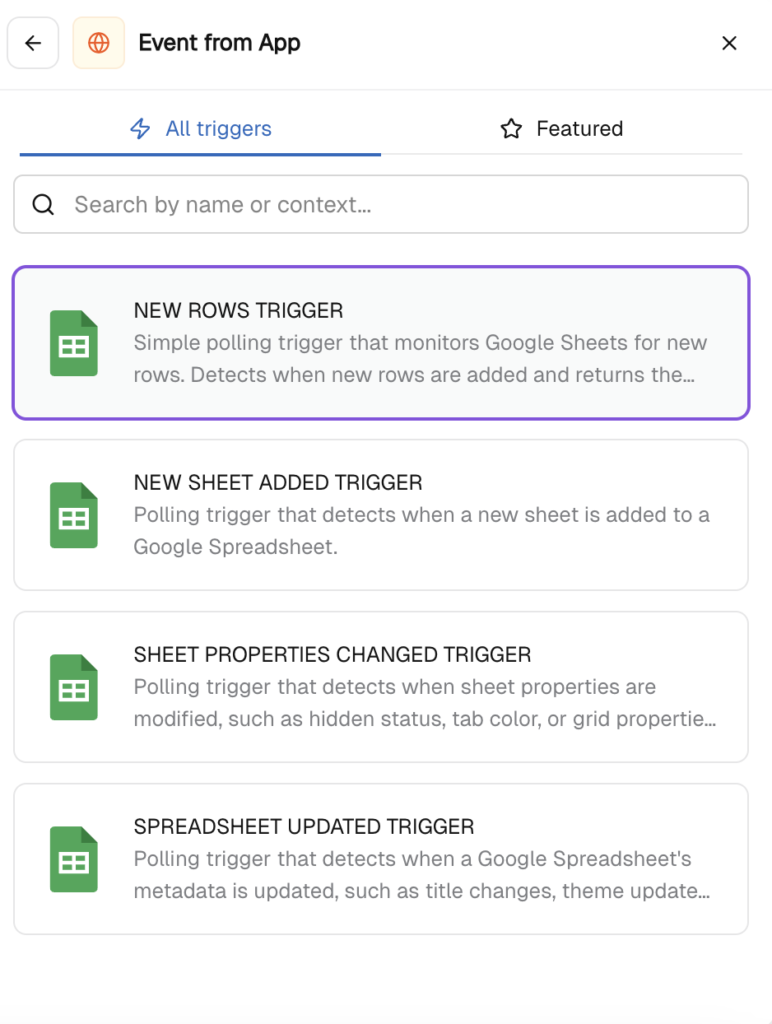
Add an Event from App node and choose the trigger (e.g. Google Sheets where your CRM is).
Authorize your Google account and select the trigger:
This tells CogniAgent when to react.
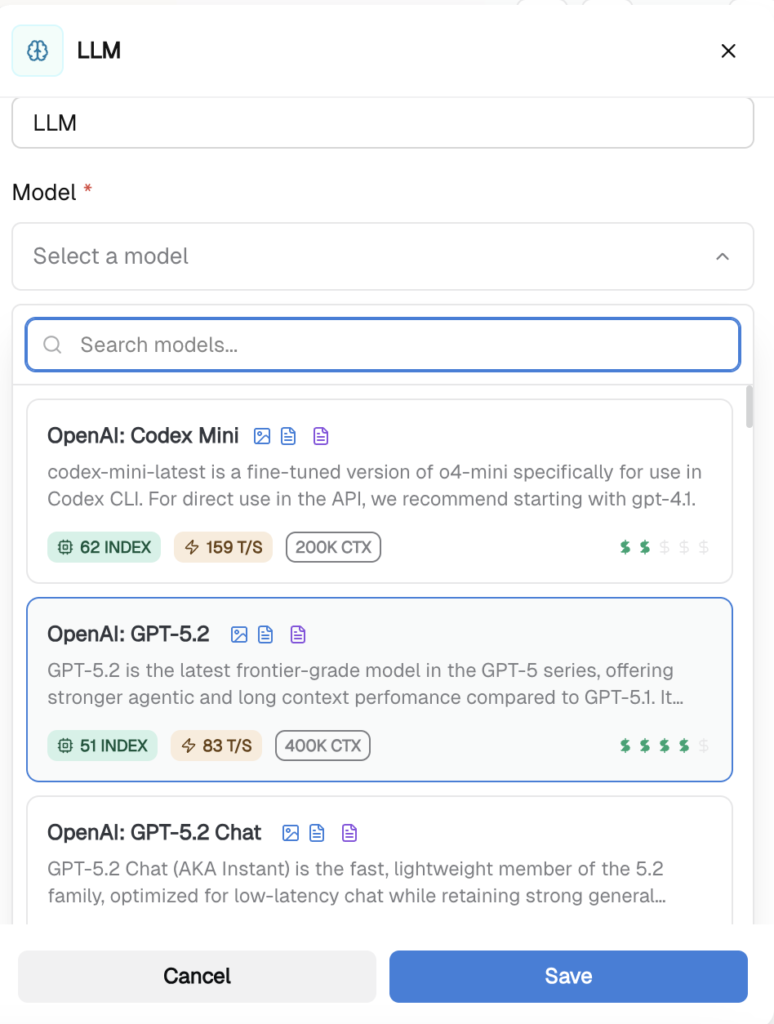
To avoid manual review, add an LLM node.
In the instructions, define how the AI should analyze the submission, for example:
The output is a clear, human-readable summary and intent classification.
Add an Action in App node to act on the AI analysis.
Choose how to notify your team:
Include the AI-generated summary and intent in the message. That’s it.
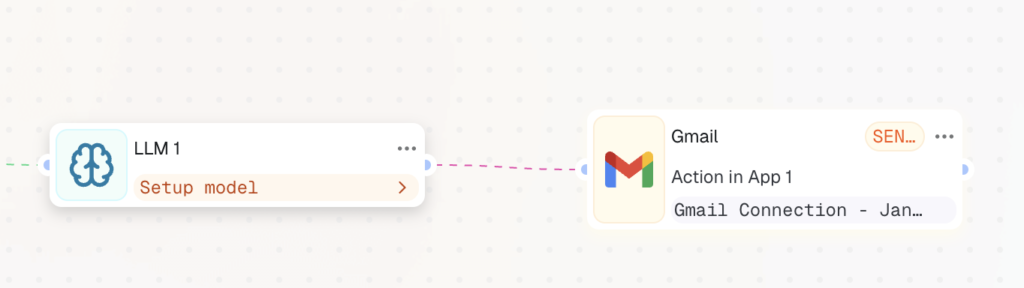
With this setup:
This is the simplest way Applications work in CogniAgent.
Once you understand this pattern, you can optimize most business workflows using the same logic.
Ready to build more?
Explore the Nodes guides to understand what each node does and the use cases it enables.