Jan 15, 2026

3 min read
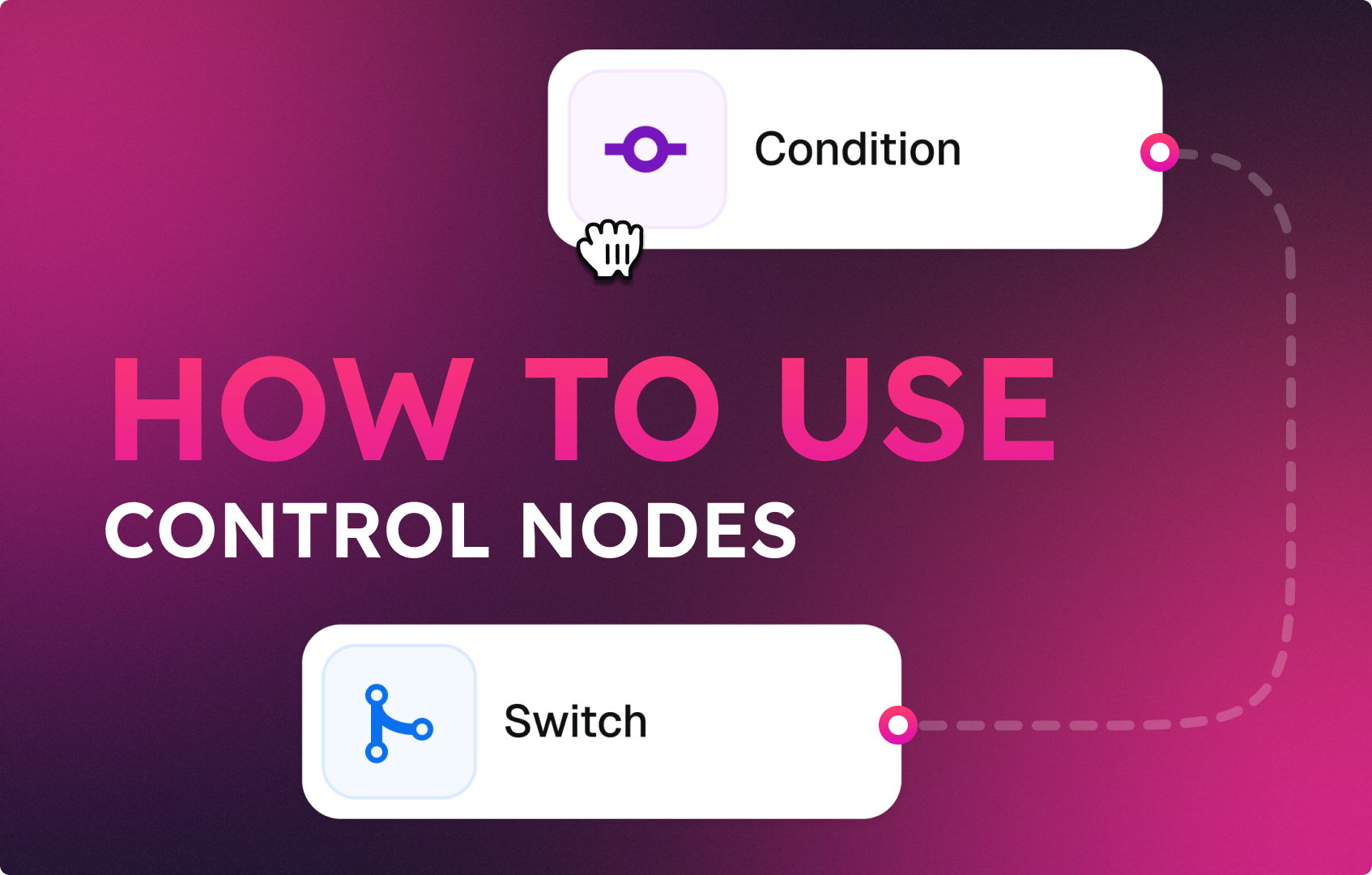
While Action nodes do things, Control nodes decide what happens next.
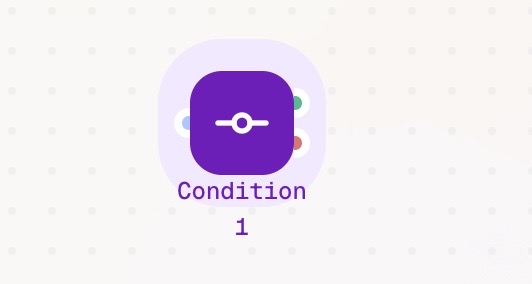
Condition Node
The Condition node evaluates a rule and determines how the workflow proceeds.
It acts as a logical gate:
- Compare input data against a condition
- Route the workflow based on the result (e.g., true / false)
Example:
- If sentiment score > 0.7 → notify marketing
- If payment failed → send follow-up email
- If user is inactive → stop the workflow
This node is essential for building intelligent, decision-based automations.
Loop Node
The Loop node enables repetition.
It takes a collection of data – such as a list or dataset – and runs the following nodes once for each item.
Common examples:
- Sending personalized messages to a list of users
- Processing multiple orders or records
- Running AI analysis on a batch of inputs
Practical use cases:
- Bulk messaging: notify every user found in a database search
- Batch AI analysis: analyze 50 customer feedback comments received at once

Switch Node
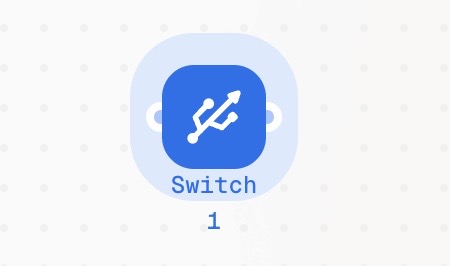
The Switch node enables branching.
It routes your workflow into one of several specific paths based on natural language AI conditions.
Instead of writing code, you describe the intent that should trigger each path.
Common examples:
- Go one path when the intent is a refund request
- Go another path when the intent is a general question
- Route messages based on what the user is asking for
Practical use cases:
- Customer support: route refund requests, complaints, or general inquiries to different flows
- Request handling: send different user intents into dedicated workflows
- Message classification: separate incoming messages by intent
Human Approval Node
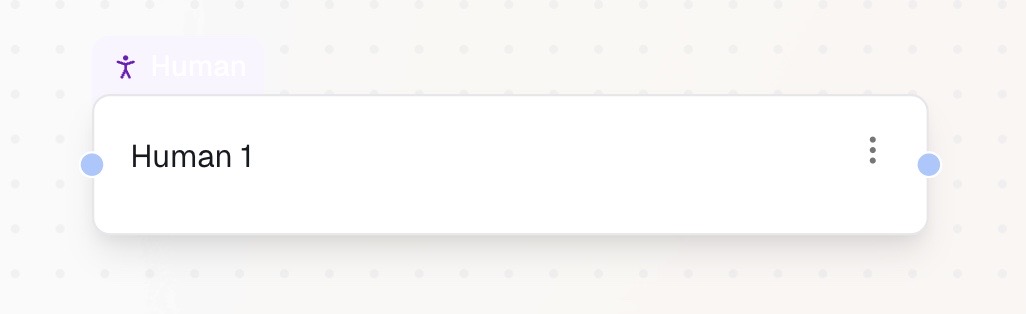
The Human Approval node adds an extra security layer to your workflow.
It sends a request for approval to a connected service. You define what needs to be approved, include the approval message, and specify the contact person.
The workflow waits for human confirmation before continuing.
Common examples:
- Requesting approval before proceeding with a step
- Sending a confirmation request to a responsible person
Practical use cases:
- Security checkpoints: require approval before executing sensitive actions
- Controlled workflows: ensure a human reviews a step before automation continues
Merge Node
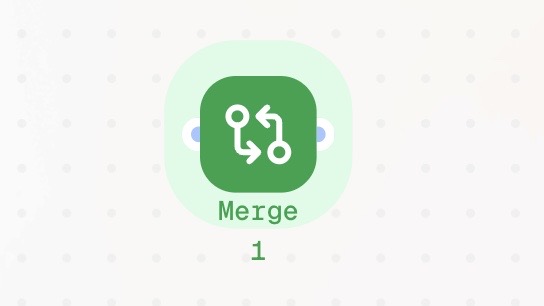
The Merge node is a synchronization point.
It gathers separate workflow branches and combines them back into a single path.
This node acts as a waiting room for your automation. It waits until all connected branches have finished their tasks before allowing the workflow to continue to the next step. Execution is paused automatically until every branch reaches the Merge node.
Common examples:
- Waiting for multiple workflow branches to complete
- Combining data from parallel tasks
- Resuming execution after separate actions finish
Practical use cases:
- Parallel task completion: update a CRM and write a follow-up email before continuing
- Data collection: fetch and combine results from multiple branches into one output
Conclusion
Control nodes are what turn simple automations into intelligent workflows.
By using Condition, Loop, Switch, Human Approval, and Merge nodes, you can decide when something should happen, how often it should repeat, which path it should follow, who must approve it, and when everything is ready to move forward.
Together, these nodes give your workflows structure, logic, and control — allowing automation to react to data, intent, and human input instead of following a rigid, linear path.
Once you master Control nodes, you’re no longer just automating tasks — you’re designing workflows that think, decide, and adapt.
Next steps
Be sure to check the other step-by-step explanations of the nodes:
👉 Introduction to Starting Nodes
👉 Introduction to Action Nodes